Docs / Using Mediarium
Notifications
Notifications tell you when something happens: a download started or finished, a download failed, Mediarium needs a decision, a subtitle arrived, a connection to your Usenet provider or an indexer broke, an error was added to Logs and errors, or a new version of Mediarium is out. Administrators set them up under Settings > Connections > Notifications.
The page
- Your notifications at the top lists everything you have set up, one card each: the logo, its name, where it goes, and what it tells you about. Every card has an on/off switch (off keeps the settings but sends nothing), Test (sends a test message right now), Edit and Remove. With no notifications yet, the section says so and suggests ntfy, which needs no account.
- Add a notification below it has the list of ways to be notified on the left and the form for the one you picked on the right. On a phone the list becomes a row you slide sideways. What you type in one method is kept while you look at the others (a small dot marks the ones you started), until you press Add.
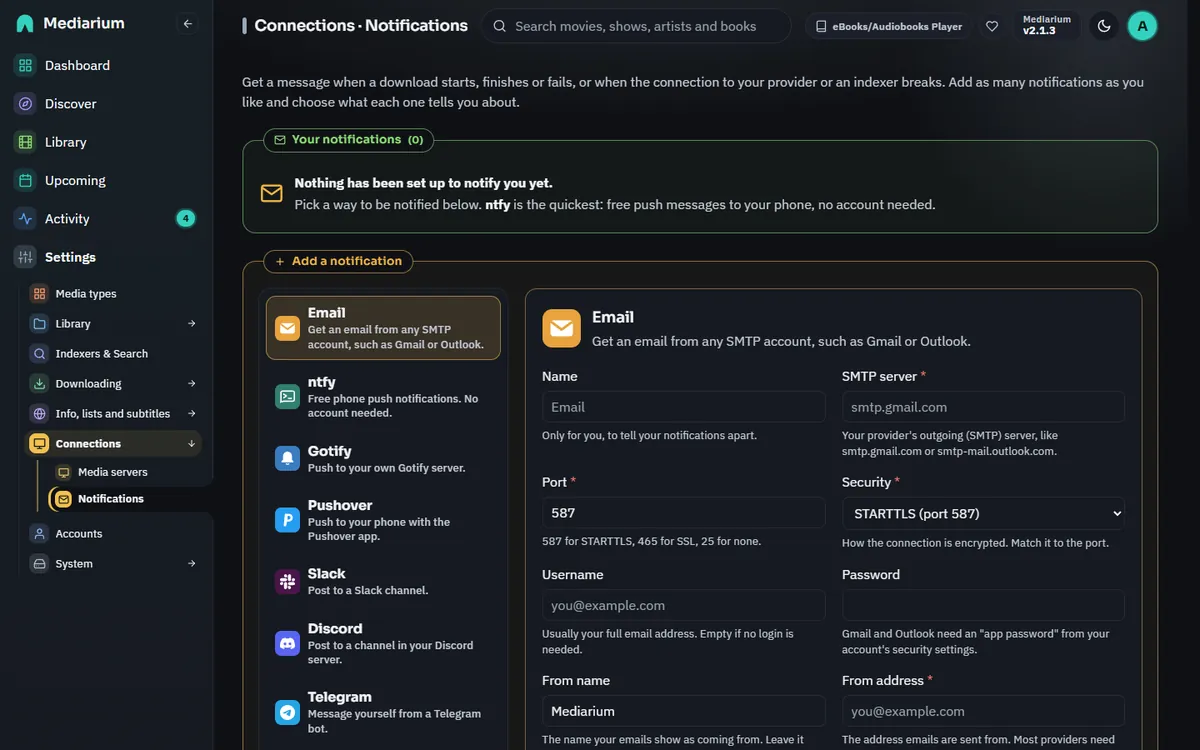
Settings > Connections > Notifications: the notifications you have set up, each with its switch, Test, Edit and Remove, and the ways to add another below.
Ways to be notified
| Method | What it needs |
|---|---|
| The outgoing (SMTP) server of your email account, a login if it needs one, a "from" and a "to" address. Gmail and Outlook need an app password. The From name box sets the name emails show as coming from (Mediarium unless you change it). | |
| ntfy | A topic name, nothing else. Free push messages to your phone; use your own ntfy server if you have one. |
| Gotify | The address of your Gotify server and an application token. |
| Pushover | Your user key and an application token from pushover.net. |
| Slack | An incoming-webhook address from a Slack app. |
| Discord | A webhook address from a channel's Integrations settings. |
| Telegram | A bot token from @BotFather and the chat ID. |
| Matrix | The address of your Matrix server, the ID of a room, and an access token for an account that is in that room. See Matrix. |
| Home Assistant | The address of Home Assistant and a long-lived access token (for a notify service), or a webhook ID (to start an automation). See Home Assistant. |
| Apprise | The address of an Apprise API server, and either the service addresses to send to or the key of a configuration saved on that server. See Apprise. |
| Push to this device | Notifications straight to the phone or computer you're using, from the browser itself. No app or account needed. See Push to this device. |
| Webhook | Any address; Mediarium sends it a small JSON message, for your own automations. You can write your own JSON body with {{event}}, {{title}}, {{message}} and {{at}}. |
Matrix
Mediarium posts into one room as an account you choose. A separate account for it is tidiest.
- Make the account (or use your own) and join it to the room.
- Access token: in Element, Settings > Help & About > Advanced > Access Token. Anyone who has it can act as that account, so treat it like a password. Mediarium stores it encrypted and never shows it again.
- Room ID: in the room's settings, Advanced, copy the internal room ID. It starts with
!, like!abcdefg:example.org. A room alias that starts with#does not work. - Homeserver address: the server your account lives on, for example
https://matrix.org.
Messages are sent as normal text with the details in bold, so your phone makes a sound for them (a "notice" would stay silent with the usual settings). Mediarium does not do end-to-end encryption, so in an encrypted room its messages show up marked as not encrypted. A room without encryption is the simplest choice.
Home Assistant
There are two ways, and you fill in only one of them:
- A notify service. Create a long-lived access token at the bottom of your profile page in Home Assistant and paste it in. Notify service is the name after
notify.in Developer tools > Actions, for examplemobile_app_your_phone. Leave it asnotifyto usenotify.notify. Mediarium sends the subject as the title and the details as the message. - A webhook. Leave the token empty and give a Webhook ID. Mediarium posts to
/api/webhook/<id>with the event, title, message, time and (when there is one) the link and poster, as JSON. In your automation use a Webhook trigger with the same ID and readtrigger.json. Webhook triggers only accept requests from your local network unless you changed that on the trigger.
If both are filled in, the webhook is used. The webhook ID and the token are stored encrypted. Use the address you open Home Assistant at, for example http://homeassistant.local:8123.
Apprise
Apprise is a small server that can send a message to dozens of services (Teams, Signal, Mastodon, SMS gateways and many more). Mediarium talks to its API; Apprise does the rest.
- Apprise API address: where your Apprise API server runs, for example
http://apprise:8000. If it asks for a login, fill in the username and password too. - Either the Service addresses: one or more Apprise addresses such as
discord://webhook_id/token, separated by commas. They contain tokens, so they are stored encrypted. Mediarium sends them with every message (Apprise's "stateless" mode). Or the Configuration key of a configuration you saved on the Apprise server; then the services come from there. Use one or the other, not both. Saved values can't be cleared by leaving a box empty, so to switch from addresses to a key (or back), remove the notification and add it again. - Tag: optional. Only the services with this tag get the message.
If Apprise cannot reach one of its services it answers with an error (424) and the test says so; the details are in the Apprise log.
All three go through Mediarium's usual address check, like the other methods. They also have the Send a test log and the choice of events.
Adding one
- Choose the method on the left.
- Fill in the fields. Each has a short explanation underneath, required ones are marked with a star, and mistakes (an address without
http://, an email address without an@, a port that is not a number) are pointed out as you type. - Choose when it should tell you: download started, downloaded, failed, needs a decision, subtitles, something is wrong, a new version of Mediarium. The default is downloaded, failed, something is wrong and a new version.
- Press Send a test and check your device, then Add. Add works without a test, but a test finds a wrong address or password before you rely on it.
The test log
Send a test shows a dark log box under the form, for every method, with a line for each step and the time it happened, for example:
14:05:01.113  Connecting to smtp.example.com:587
14:05:01.290  Connected
14:05:01.291  Starting a secure connection
14:05:01.402  Secure connection started (TLS 1.3)
14:05:01.403  Signing in as name
14:05:01.655  Sign-in refused: wrong username or password (535)
The last line is the result: Done: accepted by the server, or the reason it failed, such as Could not connect: connection refused, Refused: wrong token, key or password (401) or Not found: check the address, topic or chat (404). Copy puts the whole log on your clipboard. Passwords, tokens and the secret part of a webhook address are never in it. The friendly one-line result stays above it. The same log appears when you press Test on a notification you already set up. Scripts get the lines as steps (time, text, ok) in the answer of POST /api/notifications/test.
What a message looks like
Every message has a clear subject and the same details, made from one template, so an email, a Discord message and a phone push say the same thing:
| Event | Subject |
|---|---|
| Downloaded | Night Harbour (1997) is ready to watch (an album: is ready to listen to) |
| Download started | Downloading Night Harbour (1997) |
| Failed | Download failed: Night Harbour (1997) |
| Needs a decision | Needs your decision: Night Harbour (1997) |
| Subtitles | Subtitles added: Night Harbour (1997) |
| Something is wrong | Mediarium needs attention: your Usenet login was refused |
| New version | Mediarium 2.1.0 is available |
| Test | Mediarium test message |
Under the subject is one sentence and a small table: title, year, quality, size, where it was saved (or the reason it failed, or the release name) and the time.
- Email is a formatted page with the Mediarium name on the brand colour, the poster, the table and an Open in Mediarium button, plus a plain-text version of the same message for mail programs that don't show pages. It loads nothing but the poster picture from TMDB: no tracking pictures, scripts or fonts. A message about a problem uses a warmer colour under the header.
- Discord gets an embed with the poster as a thumbnail and a field per detail. Slack gets a header, the sentence, the details in two columns and a button. Telegram gets bold text and a link. ntfy gets a title, a priority, an emoji tag for the event, and the title's page as the tap action. Gotify, Pushover and webhooks get the same subject and details in their own format.
- A webhook keeps
event,title,messageandat, and addsdetails(a list oflabelandvalue), andlinkandposterwhen there are any.titleis now the subject andmessagethe sentence with the details, one per line. A custom JSON body sees the same{{title}}and{{message}}.
The link
Quiet hours on the same page hold everyday messages (downloading, ready to watch, subtitles, a new version) between two hours, for example from 23:00 to 7:00; they arrive together when the quiet hours end. Problems (a failed download, a broken connection, a decision to make) are always sent straight away. Waiting messages are kept in memory, so a restart during the quiet hours drops them. The hours are server time. Stored as notify.quiet_hours ("23-7"); scripts use notifyQuietHours in PUT /api/settings. A season pack already sends one message, not one per episode.
Link in messages on the same page holds the address you open Mediarium at, for example https://mediarium.example.com. Saved by itself. With it, messages get the Open in Mediarium button, and the footer of an email links to this page. Without it, messages carry no link. Scripts use publicUrl in PUT /api/settings, stored as server.public_url.
What is checked. Web addresses must start with http:// or https:// and name a server. The email server is a bare host name (smtp.gmail.com, no http:// and no port), the port is a number from 1 to 65535, and every From and Send to address must look like name@example.com. Email needs a username and password together, or neither. Tokens and keys can't contain spaces or line breaks, and a Telegram chat ID is a number (groups start with a minus sign) or an @channel name. The page says what is wrong under the field, and the server refuses the same mistakes if you use the API directly.
Push to this device
Push sends notifications to a phone or computer through its own browser, like a regular app does. Nothing is installed and no account is needed.
- Open Mediarium on the device that should get the notifications, at its secure address (https). Browsers only allow push on secure pages, or at
localhoston the server itself. If you open Mediarium athttp://192.168.x.x:8264, put it behind a reverse proxy with https first. - iPhone and iPad (iOS 16.4 or later): tap Share > Add to Home Screen, then open Mediarium from the new icon. Push only works from there, not in Safari itself.
- Go to Settings > Connections > Notifications, choose Push to this device, press Allow notifications on this device and allow it when the browser asks. The name is filled in with the kind of device, such as "iPhone"; change it if you like.
- Pick when it should tell you, press Send a test, then Add.
Do this on each device you want notified: each one is its own entry in the list. Tapping a notification opens Mediarium at that title when Link in messages is set, otherwise at the dashboard.
The messages are encrypted for that device alone before they leave your server. The browser maker's push service (Google, Apple, Mozilla or Microsoft) passes them on but can't read them. Your server signs them with its own key (made the first time Mediarium starts, kept encrypted with the other settings), so no one else can send to your devices.
If a device stops getting them, for example after you removed the Home Screen icon or switched notifications off in its settings, the next message fails with "this device isn't subscribed any more". Remove it from the list and allow notifications on the device again.
Changing or removing one
Edit opens the same form filled in. Passwords, tokens, keys, webhook addresses and ntfy topics are stored encrypted and are never shown again: their fields say "Saved. Leave empty to keep it." so you don't need to type them again to keep them. Save changes saves your edits, and a test from the edit form uses what is in the form.
Connection watch
Every half hour Mediarium checks that your Usenet provider and indexers still accept your login. If one stops working it notifies you once, and again when it recovers; turn on Something is wrong on a notification to get these. Check now runs it straight away. The box Check every … minutes changes how often (5 or more; 0 turns the checks off), and you press Save. Scripts use monitorIntervalMinutes in PUT /api/settings, stored as monitor.interval_minutes.
Errors
Turn on Tell me when an error happens at the bottom of Settings > System > Logs and errors to get a message, through the notifications that have Something is wrong ticked, whenever a new error is added to that page. Warnings are not sent. It is off by default. See Logs and errors.
New versions
Once a day (see Install guide) Mediarium checks whether a newer release is out. When one is, it sends one message for that version to every notification that has New version ticked, and no more for the same version. Notifications you made before this existed do not have it ticked: edit them to add it.
For scripts
GET /api/notifications, POST /api/notifications, PUT /api/notifications/{id} (also used by the on/off switch), DELETE /api/notifications/{id}, POST /api/notifications/test (send the form as it stands, or just {id} for a saved one), GET /api/notifications/types (the methods and their fields) and GET /api/notifications/events (the events you can choose) are listed in API routes. All are administrator-only.