Docs / Using Mediarium
Music
Mediarium can look after a music collection: artists, their albums and the tracks on them. It finds them with the same indexers, and downloads them with the same Usenet and torrent downloaders, as your movies and shows. Music is a module you switch on. Until you do, nothing about music appears or runs.
Switching it on
- Decide where your music lives. Inside the container this is
/music. With the recommended single/datafolder (see Install guide), add this line to theenvironmentsection of your compose file so music sits beside your movies and TV and finished downloads can be hardlinked:
yaml
         - MUSIC_DIR=/data/music
Or map a folder of its own, for example - /volume1/music:/music (no MUSIC_DIR line is needed while the right side stays /music). The compose file in the install guide has both as commented lines you can switch on. On a NAS, create the folder first, or Docker stops with Bind mount failed ... does not exist. The folder is only used once the module is on.
2. As an administrator, open Settings > Media types and switch on Music (see Media types). Then you can change the music folder on the Folders page (Settings > Library). The value in Settings wins over MUSIC_DIR.
In the first-run setup wizard, choosing Music on the Media types step adds a music box to the Library paths step. It starts from MUSIC_DIR. If nothing is mapped at /music but your movies and TV share a parent folder such as /data, it suggests a folder inside it (for example /data/Music). If the folder isn't mapped at all, it shows the exact compose line to add.
Switching it off again hides the music pages and stops automatic album searches. Nothing is deleted: your artists, albums and files stay, and downloads already running finish.
For scripts: PUT /api/settings with {"musicEnabled": true, "musicPath": "/data/music"} switches it on, PUT /api/modules with {"music": true} does the same, GET /api/modules tells every signed-in account which modules are on, and while the module is off every /api/music/... request answers 404 {"error": "The music module is switched off. ..."}.
In the app
With the module on, music shows up next to movies and TV. Basic users can browse, add artists and grab releases. The buttons that delete things or change settings are for administrators.
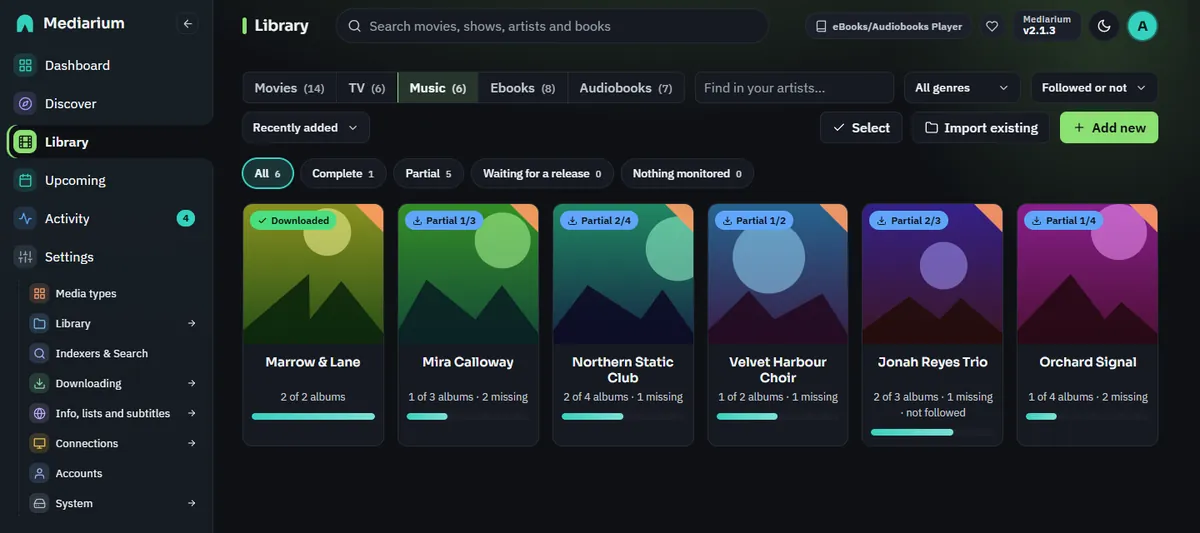
Library, Music tab: your artists, with how many of their albums you have.
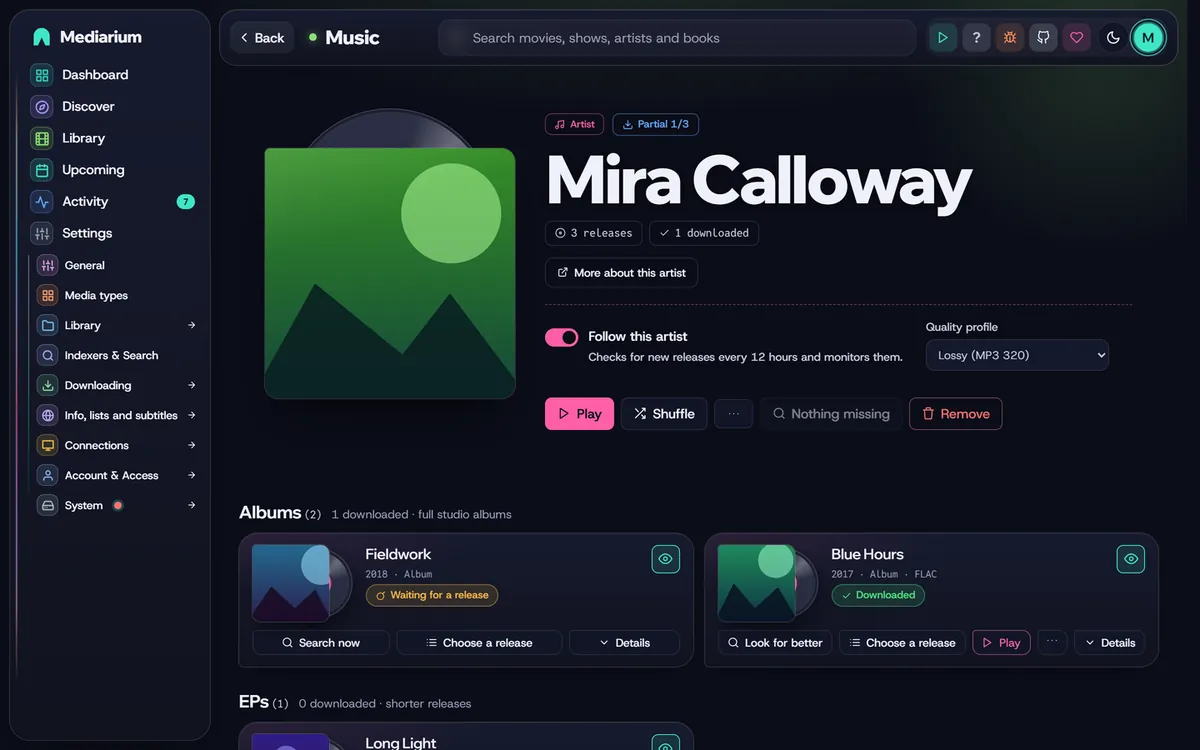
An artist page: the summary, the follow switch and quality profile, and the albums with their status.
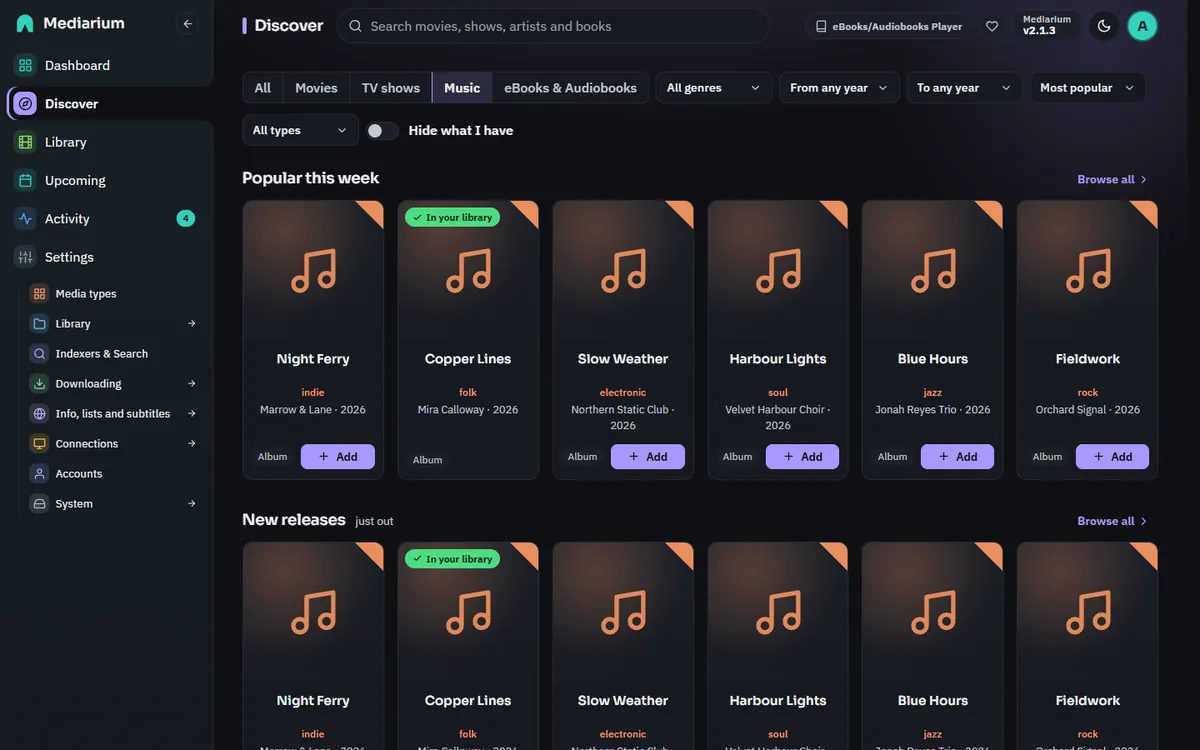
Discover, Music tab: the same filter row as Movies and TV shows, and the rails of popular and new albums.
- Library, Music tab (
/library?kind=music): your artists as cards with a coloured corner, how many albums you have and how many are missing. Find an artist by name, filter by followed or not, sort by name, date added or most albums missing, and use the chips for Complete, Partial, Waiting for a release or Nothing monitored. Add new opens the artist search, Import existing starts the collection scan (administrators). Administrators can also use Select to follow, stop following, set the quality profile of or remove several artists at once (see Library). A kind that's switched off has no tab. If your last-used tab was switched off, the first tab that's on opens. - Artist page (
/music/artist/{id}): the artist with a summary (releases, downloaded, missing, the quality profile in use, monitored) and their Albums, EPs and Singles as cards. Each card shows the cover, year, quality, what it's doing (Waiting for a release, Downloading with a progress bar, Downloaded, Not monitored) and: - an eye button to monitor or stop monitoring the album,
- Search now (or Look for better once downloaded),
- Choose a release, the list of releases found, with the quality and the reason automation would skip a release, or a "fallback" label when only a fallback profile accepts it. Grabbing is always allowed,
- Details, which opens the album across the page: Tracks (each track with "in library" or "missing"), Releases, What happened (the album's own activity log, newest first) and Files (everything in the album's folder, see below).
The page refreshes every few seconds while it's open. Search for N missing albums searches every monitored album that's missing. Administrators can Remove the artist (the "Also delete everything on disk" option is unticked, and shows how many files and how much space the albums take) and change two things right in the summary: Follow this artist (whether releases that come out later are picked up, see "Following an artist") and the artist's Quality profile (Default, or one of the music profiles). Basic users see both as labels. The cover on the page is the artist's picture (the cover of their first album that has one). When there's none, a music note takes its place.
- Discover, Music (/discover?kind=music, and inside All while Music is on): it has the same row of filters as the Movies and TV shows tabs. To look for an artist by name, use the search box at the top of the page. Below the filters are the rails Popular this week, New releases, Coming soon (albums with a release date still ahead) and Popular artists. An album card shows the cover, title, artist, year, whether it's an album, EP or single, and an Add button. Artists show how many listens they have. Something already in your library says In your library and opens its artist page. Each rail has Load more and Browse all, which opens the whole list on its own page with pages to step through, a time choice for the popular lists (this week, month, year, all time) and the same filters. The filters are Genre (Rock also finds punk rock and hard rock), From year, To year, Order (Most popular, Newest first, Oldest first) and Type (Albums, EPs, Singles). Once you pick one, the rails give way to one list of everything that matches, taken from the most played albums of all time, in pages of whole rows. Hide what I have leaves out what is already in your library. If a list can't be shown right now, the rail says so instead of staying empty.
Add opens the "Add /music/import, administrators): press Start scanning and follow the progress bar (it reads the folder, then looks each album up in the music database, one a second). Then you get a summary (added, already in your library, not matched, with a problem) and two lists side by side: what was added (each opens its artist) and what wasn't matched, with the reason and the folder. Scanning again is safe.
Adding an artist
Search for the artist by name. A short description ("jazz", "UK rock band") tells artists with the same name apart. When you add one, Mediarium lists its albums, EPs and singles. Live albums, compilations, remixes, soundtracks and DJ mixes are left out, so the list is the artist's own studio releases.
The Add dialog is the same everywhere you can add an artist (Discover and the header search), with these choices:
| Choice | What is monitored |
|---|---|
| Follow all albums (default) | every album, EP and single, and new releases as they come out |
| Only future albums | releases that are not out yet (and new ones, once they are found) |
| Just add the artist | nothing: the artist is listed, you pick albums yourself |
| Only this album (when you add from an album) | that one album; nothing else is monitored |
You can switch any album on or off later. Only albums that are monitored and already released are searched for automatically, and each album has its own switch. Basic users can add artists and albums and grab releases just like movies. Removing an artist is for administrators.
Adding a large discography can take a few seconds, because the music database allows only about one lookup a second. Mediarium remembers answers for a few hours. Where the data comes from is listed under Sources.
How albums are found
Mediarium searches your indexers for "Artist Album" in the audio categories (3000 audio, 3010 MP3, 3040 lossless, 3050 other). For every result it reads the release name: artist, album, year, format (FLAC, ALAC, MP3, AAC), bitrate (320, V0, 256, 192), bit depth (16 or 24 bit) and source (WEB, CD, vinyl). Both common styles are understood:
Artist - Album (2020) [FLAC 24bit-96kHz]Artist_Name-Album_Title-(CAT001)-WEB-2020-GROUP
A release is skipped when it's another artist or another album, a discography or collection instead of one album, dated before the album came out (a later year is fine: that's a reissue or remaster), blocklisted, or of a quality the album's profile doesn't take. The album's page shows every result with these reasons (interactive search), and its activity log records each automatic search: how many releases were found, how many were acceptable, why the others weren't, and which one was picked.
Wanted albums are searched on the same schedule as movies and shows (see Automatic searching), at most 25 albums per run. A longer wanted list is worked through over the next runs.
Following an artist
An artist is either followed or not (monitored on the artist). Following decides one thing: whether releases that come out later are picked up. Every 12 hours (while the music module is on) Mediarium checks the releases of each followed artist again. A new album is added and monitored, so it's searched for as soon as it's out, and an announced album that now has a release date gets it. Unfollowing an artist stops that. It never changes the monitored switch of any album already listed. Those keep deciding, one by one, what is searched for, so an unfollowed artist's monitored albums are still wanted.
Administrators change it, and the quality profile, with PUT /api/music/artists/{id} and {monitored?: bool, profileId?: number} (profileId 0 puts the artist back on the default profile; a field left out changes nothing). The answer is the artist with its albums, like GET /api/music/artists/{id}.
Quality
Music has its own quality ladder, worst to best: MP3-192, MP3-256, AAC-256, MP3-320/V0, FLAC, FLAC 24bit. ALAC counts as FLAC. A release name that says nothing about the format is "Unknown" and isn't taken automatically. An MP3 release that names no bitrate counts as MP3-192. Once files are on disk their quality is read from the files themselves (see below), not from the release name.
Two profiles are built in:
| Profile | Takes | Stops upgrading at |
|---|---|---|
| Lossy (MP3 320) (default) | MP3 320/V0, AAC 256 | MP3-320/V0 |
| Lossless (FLAC) | FLAC, FLAC 24bit; falls back to Lossy when no lossless release exists | FLAC |
Upgrades start off on both, so an album is downloaded once and left alone. "Stops upgrading at" is where a profile stops if you switch upgrades on (Settings > Library > Quality > Music, Keep looking for better versions after it is downloaded). An album that's only there because of a fallback profile is still replaced when a release the main profile accepts appears, with upgrades on or off.
MP3 is the default because it's the most common format. With the Lossless profile, an album that's only available as MP3 320 is downloaded as MP3 (a fallback), and replaced as soon as a FLAC release turns up. New installs start with this order. Profiles and the default you already chose are not changed, and they keep the upgrade setting they were saved with. 24-bit FLAC is taken when it's the best release found, but not hunted for: those files are several times larger.
Where files go
After the download is repaired and unpacked (as for movies), Mediarium finds the audio files (.flac, .mp3, .m4a, .aac, .ogg, .opus, .alac), matches them to the album's tracklist from the metadata service, and places them like this:
<music folder>/<Artist>/<Album> (<Year>)/01 - Title.flac        one disc
<music folder>/<Artist>/<Album> (<Year>)/2-01 - Title.flac      albums with several discs
Plex, Jellyfin and Navidrome all read this layout. Files are hardlinked from the downloads folder when both are on the same disk (no extra space), otherwise copied. cover.jpg and folder.jpg (or .png) are kept beside the tracks. Other files (.nfo, .log, .cue) aren't copied.
Files are matched by disc and track number first (from the file name, or a CD1/Disc 2 folder), then by title, then by number alone. If none of a release's files can be matched, the release is blocklisted as bad and the next-best one is tried, as for movies. Tracks the release doesn't have, and extra files it has, are listed in the album's activity. When an album is upgraded (MP3 to FLAC), the old files are removed once the new ones are in place.
Your own profiles
Administrators can make, change and delete music profiles, and choose which one is the default (used by artists that have none of their own; the built-in Lossy (MP3 320) until you change it). A profile has a name, the qualities it accepts, a cutoff (once an album reaches it, it's no longer searched for upgrades), whether upgrades are allowed at all, and an optional fallback chain: other profiles tried, in order, when nothing a profile accepts can be found. The rules are those of the movie and TV profiles: the name is unique, at least one quality is picked, the cutoff must be one of them, and a profile that's the default or that an artist uses can't be deleted (the answer says which). Only a profile's own fallback list is followed.
POST /api/music/profiles, PUT /api/music/profiles/{id} and DELETE /api/music/profiles/{id} take and return {id, name, allowed[], cutoff, upgradeAllowed, fallback[], default, inUse} (GET /api/music/tiers lists the qualities to pick from, worst to best). The default is chosen with musicDefaultProfileId in PUT /api/settings (stored as music.default_profile_id).
Tags and real quality
Mediarium reads the tags inside audio files (ID3, Vorbis comments, MP4) with the dhowden/tag library: title, artist, album artist, album, track and disc number, year and whether a picture is embedded. It only reads. Your files and their tags are never rewritten. After a download the tags identify each file first (track and disc number, title), then the file and folder names fill in what the tags lack.
The quality of the files is read from their headers, so it's what the files are and not what the release was called:
| Format | How it is rated |
|---|---|
| FLAC | 16 bit is FLAC, 24 bit is FLAC 24bit |
Apple Lossless (.m4a) |
the same, from the bit depth stored in the file |
| MP3, constant bitrate | 320 kbit/s is MP3-320/V0, 256 is MP3-256, less is MP3-192 |
| MP3, variable bitrate | by the average bitrate: about 220 kbit/s and up (LAME V0 averages 220 to 260) is MP3-320/V0, 190 and up MP3-256, less MP3-192 |
AAC (.m4a, .aac) |
224 kbit/s and up is AAC-256, less ranks with the lowest MP3 |
| Ogg Vorbis and Opus | a rough guide from the average bitrate, on the MP3 steps |
An album is rated by its weakest file, so one MP3 among FLAC files makes it MP3. A file whose header can't be read is left out of the count. When none can be read the album is Unknown, which automation never upgrades.
Files and playing tracks
GET /api/music/albums/{id}/files (any account) lists the files in an album's folder like the movie and show file listings: {folder, files: [{path, size, modified, kind, main, trackId}]}. folder is relative to the music folder (never the full path on the server), kind is audio, image, nfo, subtitle or other, and a track's file has main: true and its trackId. An album that isn't on disk yet has an empty listing.
GET /api/files/stream?album={id}&path=<relative path> sends one of those files as it is, with range support so a browser can seek, and an audio file with its own type: audio/flac, audio/mpeg (MP3), audio/mp4 (M4A, ALAC), audio/aac, audio/ogg and audio/opus. The cover and text files preview as they do for movies, and everything else is refused. Every answer keeps the nosniff, Content-Security-Policy: sandbox and inline Content-Disposition headers. Only files inside the album's folder, which must lie inside the music folder, can be reached: no ../, no absolute paths, no symbolic links leading out. Whether a browser can play a format is up to the browser (MP3 and AAC/M4A play everywhere, FLAC in current browsers, ALAC only in Safari). Playing is refused while the music module is off.
Playing music in Mediarium
On an artist page, Play on a downloaded album starts it from the first track, and the play button next to a track starts the album from there. The button next to the volume (Open the player in its own window) moves the music to a small window of its own, like the audiobook player: the cover, the controls and the queue, which carries on from where it was. Back to the app in that window gives the music back to the bar. Starting something new in the app takes over from the window. If nothing opens, allow pop-ups for the site. Play and Shuffle at the top of the page queue everything of that artist that is in your library, newest album first, and every artist card in the music Library has a Play button too. A bar appears at the bottom of the window with the cover, the title, previous and next, a seek bar, shuffle, repeat (the whole queue, or one track), a volume slider and a close button. The music keeps playing while you move to other pages, and the media keys, headphone buttons and lock screen work too (the browser decides how much of that it shows). The volume is remembered in your browser.
Which formats play is up to the browser, as described above. When a track can't be played, the bar says so and moves on to the next one after a couple of seconds.
GET /api/music/tracks/{id}/play (any account) sends a track's file with range support, so seeking works. It answers 404 for a track that isn't on disk, and only files inside the music folder can be reached.
Queue, playlists, lyrics and scrobbling
Besides play, previous, next, seek, shuffle, repeat and the volume, the player bar has a Queue button, a Lyrics button and a Player settings button. Each opens a panel above the bar.
The queue
The Queue button opens the list of what is coming. The track that is playing is highlighted. Click a track to play it, drag a track by its dots to move it (or use the arrows on the right, which also work on a phone), and press the cross to remove it. Clear removes everything except the track that is playing.
The ... menu on a track, an album or an artist has Play next (right after the track that is playing) and Add to queue (at the end). Save as playlist in the queue panel puts the whole queue on a playlist.
The queue is kept on the device you use, in the browser's own storage, so a reload or a new visit brings it back, paused, at the place you left it. It is not shared between your devices. If the music module is switched off the kept queue is dropped.
Playlists
Open Library > Music > Playlists (/music/playlists). A playlist belongs to the account that made it and is private by default. Switch on Share with everyone and everyone on the server can see and play it, but only you can change or delete it.
- New playlist makes an empty one. From the ... menu on a track, an album or an artist, Add to playlist puts it on an existing list or on a new one. An album adds the tracks you have, in track order. For an artist the menu says Add top tracks to a playlist: up to 20 of their tracks, the most played first (the order comes from ListenBrainz and only tracks you own are used). When ListenBrainz can't be reached, or knows none of them, you get their tracks from the newest album on.
- On a playlist you can play it, shuffle it, add it to the queue, rename it, drag tracks into another order, remove tracks, and delete the list. A track you don't have a file for yet stays on the list, greyed out, and is skipped when playing. The same track can be on a list more than once. A list holds up to 5000 tracks.
- If an album is removed from the library, its tracks leave the playlists. Deleting an account deletes its playlists.
Lyrics
The Lyrics button shows the words of the song. If they come with times, the line being sung is highlighted and follows the song, and a click on a line jumps to it. Without times you get the plain words. Mediarium looks in this order:
- A
.lrcfile with the same name as the audio file, next to it (01 - Song.flacand01 - Song.lrc). - The lyrics written in the file's tags (ID3 lyrics, Vorbis
LYRICS,UNSYNCEDLYRICSorSYNCEDLYRICS, MP4 lyrics). Text that has[mm:ss.xx]times counts as synced. - LRCLIB, a free lyrics service. Mediarium sends it the title, artist, album and length of the track, and says who it is in the User-Agent. The answer is kept in the database, so a track is asked about once; a track it had nothing for is asked again after 30 days. If the service can't be reached, nothing is remembered and the next look tries again.
Synced lyrics win over plain ones: if a file only has plain words and LRCLIB has them with times, you get the timed version. Your files are only read, never changed.
An administrator can stop the online lookup in the player's settings (Settings tab of the player panel, Look up lyrics online). It is on until then, and it only happens when someone opens the lyrics of a track that has none of its own. GET /api/music/player-settings (any account) and PUT /api/music/player-settings with {"lyricsOnline": false} (administrators) do the same.
Crossfade, gapless and ReplayGain
These are in the Settings tab of the player panel and are kept on the device, in the browser.
- Gapless. While a track plays, the next one is already loaded in a second audio element, and the player starts it just before the first one ends. A gap of a few milliseconds is possible. Seeking, skipping and loading a new track work as always.
- Crossfade (0 to 12 seconds, off by default). The end of one track fades out while the next fades in. Tracks of the same album follow each other without a fade, because live albums and mixes are made to run on. A short track never gives up more than 40% of itself. Skipping with a button is always a clean cut.
- Even out the volume (ReplayGain): off, by track or by album, off by default. The player reads the
REPLAYGAIN_TRACK_GAIN,REPLAYGAIN_ALBUM_GAINand the peak tags (and OpusR128_*tags) and turns the track up or down to match. A track is never turned up so far that it would clip: if the loudest sample would pass full scale, the boost is held back, and a boost is refused altogether when the file has no peak tag. A file without the tags plays as it is, and "by album" uses the track gain for a file that only has that. Mediarium doesn't measure or write these tags.
Crossfade and ReplayGain use the browser's Web Audio. It is only switched on when one of them is. Playing with both off is the plain audio element, as before. Safari on iPhone and iPad: it ignores the volume of an audio element and has had bugs where Web Audio goes quiet when the screen is locked, so on those devices crossfade and ReplayGain may stop working while locked, and the volume slider is hidden (use the buttons on the side). With both off, playback behaves as it always has. Gapless also needs the page's code to run when a track ends, which a locked iPhone does not always allow. The lock screen and headphone controls (previous, next, play, pause, seek) work through the media session as before.
GET /api/music/tracks/{id}/gain (any account that may play) answers {trackGain, trackPeak, albumGain, albumPeak} in dB and as a plain number, with null for what the file doesn't have.
Sending your plays to ListenBrainz
Each account can send what it plays to its own ListenBrainz account. In Settings > Profile > ListenBrainz copy your user token from listenbrainz.org/settings, paste it and press Connect. Mediarium asks ListenBrainz whether the token is good before keeping it. It is stored encrypted, belongs to your account, is never shown again and never written to the log. Send my plays to ListenBrainz switches sending on and off without losing the token, and Disconnect forgets it.
- When a track starts, ListenBrainz is told what is playing now.
- A track counts as a listen once you have heard half of it or four minutes, whichever is less (seeking ahead doesn't count as listening). It is sent with the time it started.
- Mediarium looks the track up in its own library, so the title, artist, album, length, track number and the MusicBrainz ids of the artist and album come from there.
- If ListenBrainz can't be reached, or asks for fewer requests, the plays are kept (up to 500 per account) and sent together, oldest first, with the next one. If it stops accepting the token, sending is switched off and the profile says why until you paste the token again.
Last.fm isn't supported.
GET, PUT and DELETE /api/music/listenbrainz read, change and remove your own connection ({token?, enabled?}; the answer is {connected, user?, enabled, lastError?, submitted, pending} and never has the token). POST /api/music/listenbrainz/playing with {trackId} and POST /api/music/listenbrainz/listen with {trackId, listenedAt} (Unix seconds) are what the player calls.
Dashboard
GET /api/dashboard (any account) has a library.music block, {artists, albums, downloaded, missing}, counted from your library whether or not the music module is switched on (zeros when there's nothing). missing counts albums that are neither downloaded nor downloading. The other fields are unchanged.
Calendar
Albums appear on the calendar (GET /api/calendar, entries with kind: "album") while the music module is on: monitored albums that come out within the same window as episodes, 30 days back and 120 days ahead. Only albums with a full release date can be placed on a day, so an album that's only dated to a year isn't shown. An entry is {kind: "album", id, albumId, artistId, title: "Artist — Album", subtitle: "Album"|"EP"|"Single", releaseDate, status}. Movies and episodes are unchanged.
Media servers
After an album is imported, Plex, Jellyfin and Emby are asked to scan its folder, with the same short wait, path mapping and settings as for movies and shows (Media servers). Albums found by scanning an existing folder aren't announced, because the files were already there. Point your media server's music library at the same folder as Mediarium's music folder.
Discover
The Music option on Discover also lists what's popular, what came out lately and what's coming. The lists come from a free public service that needs no account or key. They're kept in memory for an hour, so many people can open the page without asking again. Every account can use them, and like every music route they answer 404 while the module is off.
GET /api/music/discover takes:
| Query | Values | Meaning |
|---|---|---|
list |
popular (default), new, upcoming |
popular: the most listened-to releases over range. new: released in the last 14 days, newest first. upcoming: dated after today, up to 90 days ahead, soonest first. |
type |
all (default), album, ep, single |
Only that kind of release. Live albums, compilations, remixes and other odd releases are left out, as they are when an artist is added. |
range |
week (default), month, year, all_time |
Only for popular. |
genre |
a genre name, case-insensitive | Only releases with a tag that is that genre or a kind of it (rock finds punk rock). A list whose releases carry no tags at all cannot be filtered, so the genre is then ignored. |
yearFrom, yearTo |
a four digit year | Only releases from that year on, and up to that year. A release with no known date is left out when either is given. |
sort |
popular (default), newest, oldest |
popular keeps the order of the list. The other two order by release date; releases with no date come last. |
page, pageSize |
1.., 24 (at most 100) | Paging. |
It answers {page, totalPages, items, note?} where each item is {mbid, title, type, artistName, artistMbid, releaseDate, genres, coverUrl, inLibrary, artistId?, albumId?}. mbid is the release group id, type is album, ep or single, genres is a list of up to four names (empty when there are none), and releaseDate is YYYY-MM-DD (or a shorter date, or empty, when only that is known). inLibrary is true when that album is already in your library (then albumId and artistId are set and coverUrl is the album's own cover). artistId alone means you have the artist but not that release. totalPages is at least 1, and a page past the end has no items. If the lists can't be reached the answer is still 200 with items: [] and note: "The list is not available right now. Try again later.".
GET /api/music/discover/artists?range=week|month|year|all_time&page=&pageSize= lists the most listened-to artists as {page, totalPages, items: [{mbid, name, listenCount, inLibrary, artistId?, coverUrl?}], note?} (coverUrl is only there for artists you have). Add one with POST /api/music/artists and its mbid.
Covers on these lists never come from an outside host. coverUrl is /api/music/covers/release-group/{mbid} (any account), which fetches the front cover of that release group once, keeps it in the music-covers folder and serves it like the album covers below. A release group without cover art answers a plain 404.
The page of an album you don't have yet
A card on the Music tab of Discover opens a page of its own: the cover, the artist, the year and genres, the full tracklist with lengths, and an Add to library button (Add early for an album that isn't out yet). An album already in your library opens at its place on the artist page instead. The tracklist and genres come from the music database; if it can't be reached, the page says the tracklist isn't available right now and Add still works. For scripts: GET /api/music/preview/{mbid} (any account; mbid is the release group id) answers the card's fields plus tracks: [{disc, position, title, lengthMs?}]. The covers of a Discover page are fetched in the background as soon as the list is built, a few at a time, so they are usually ready before the page asks for them.
Cover art
Covers are the 500 pixel front cover of the album, fetched once per album and kept in the music-covers folder inside your config folder, so the app never loads images from an outside site and your browser only talks to Mediarium. GET /api/music/albums/{id}/cover and GET /api/music/artists/{id}/cover (any account) serve the image with cache headers so browsers keep it for a day. An artist's picture is the cover of its first album that has one. If there's no cover the answer is a plain 404, and Mediarium doesn't look again for a day.
When an album is imported after a download and its folder has no cover.jpg, folder.jpg or cover.png, the cover is saved there as cover.jpg (cover.png for a PNG) so Plex, Jellyfin and Navidrome show it too. An existing cover is never replaced, and a cover file already in the album folder is also what the cover routes serve. Scanning an existing collection writes nothing into your folders.
Importing an existing collection
If your music is already in the music folder as Artist/Album/tracks (a year in the album folder name helps: Album (1997), 1997 - Album), an administrator can have Mediarium find it. POST /api/music/import/scan reads the folder in the background, looks every artist and album up in the music database by name (and year), and registers what matches where it is. No file is moved, renamed or changed.
- A matched artist is added to the library with its albums, EPs and singles. Only the albums found in your folder are monitored, so nothing else starts downloading.
- A matched album is marked downloaded, its folder recorded and each track linked to its file.
- The tags of the files say who and what an album is (the artist, album and year most of its files agree on), so a folder with a wrong or odd name is still found. The folder names are used when the files have no tags, and as a second try when the tags find nothing in the music database.
- The quality is read from the files (see "Tags and real quality"). It's Unknown only when no file's header can be read. Automation leaves an Unknown album alone, so it's never swapped for a better release behind your back. Choose the album and search by hand if you want an upgrade.
- What doesn't match is reported, with the reason: no artist of that name in the music database, no album of that name among the artist's albums, or audio files loose in an artist folder (put them in an album folder).
- Scanning again is safe: albums already registered are reported as "already in your library".
GET /api/music/import/scan/{id} answers {id, root, phase: "scanning"|"matching"|"done"|"failed", done, total, summary: {artists, albums, imported, already, unmatched, failed}, results: [{artist, album, folder, files, status: "imported"|"already"|"unmatched"|"failed", message, artistId, albumId, quality, tracks}], error?}. Starting a scan while one is running returns the running one.
Removing an artist
Removing an artist (administrators) always cancels its downloads and deletes their files in the downloads folder. With Delete files its album folders in the music folder go too, and the artist folder once it's empty. Nothing outside the music folder is ever deleted.
Sources
Album, artist and release information, cover art and the popular and new-release lists on Discover all come from free public music services. They ask apps to make at most one request per second and to say who they are, and Mediarium does both. Lyrics are looked up on LRCLIB (see "Lyrics"), and ListenBrainz also receives your plays if you connect it. The services are named and credited on the About and credits page in the app and in Legal notes.
API
| Method | Path | Body / query | Answer |
|---|---|---|---|
| GET | /api/music/search?q= |
[{mbid, name, sortName, disambiguation, type, country, score, artistId}] (artistId 0 when not added) |
|
| GET | /api/music/discover?list=&type=&range=&genre=&yearFrom=&yearTo=&sort=&page=&pageSize= |
see "Discover" | {page, totalPages, items: [{mbid, title, type, artistName, artistMbid, releaseDate, genres, coverUrl, inLibrary, artistId?, albumId?}], note?} |
| GET | /api/music/discover/artists?range=&page=&pageSize= |
{page, totalPages, items: [{mbid, name, listenCount, inLibrary, artistId?, coverUrl?}], note?} |
|
| GET | /api/music/covers/release-group/{mbid} |
the front cover of a release group (JPEG or PNG), or a plain 404 | |
| GET | /api/music/profiles |
[{id, name, allowed[], cutoff, upgradeAllowed, fallback[], default, inUse}] |
|
| GET | /api/music/tiers |
["Unknown", "MP3-192", ..., "FLAC 24bit"] |
|
| POST | /api/music/profiles |
{name, allowed[], cutoff, upgradeAllowed, fallback[]} |
201 profile; admin only |
| PUT | /api/music/profiles/{id} |
same (a missing fallback keeps the chain) |
the profile; admin only |
| DELETE | /api/music/profiles/{id} |
409 when it is the default or in use; admin only | |
| POST | /api/music/artists |
{mbid, monitor?: "all"\|"future"\|"none", profileId?, searchNow?} |
201 artist with albums |
| GET | /api/music/artists |
[artist] |
|
| GET | /api/music/artists/{id} |
artist with albums |
|
| PUT | /api/music/artists/{id} |
{monitored?, profileId?} |
the artist with albums; admin only |
| DELETE | /api/music/artists/{id}?deleteFiles=true |
admin only | |
| GET | /api/music/albums/{id} |
album with artistName and tracks |
|
| PUT | /api/music/albums/{id}/monitored |
{monitored} |
|
| POST | /api/music/albums/{id}/search |
[release] with rejections |
|
| POST | /api/music/albums/{id}/grab |
{releaseTitle, downloadUrl, sizeBytes, protocol?} |
202 {queueId} |
| POST | /api/music/albums/{id}/search-now |
{grabbed, message} |
|
| GET | /api/music/albums/{id}/files |
{folder, files: [{path, size, modified, kind, main, trackId?}]} |
|
| GET | /api/files/stream?album={id}&path= |
one file of the album, with ranges (audio types as above) | |
| GET | /api/music/albums/{id}/cover |
the cover image (JPEG or PNG), or a plain 404 | |
| GET | /api/music/artists/{id}/cover |
a picture for the artist (its first album cover), or a plain 404 | |
| GET | /api/music/albums/{id}/events |
[{at, kind, message, level}] |
|
| GET | /api/music/wanted?kind=missing\|cutoff |
[album + {artistName, profileName, cutoff, lastSearch, lastSearchAt}] |
|
| GET | /api/music/playlists |
[{id, name, shared, mine, owner, trackCount, durationMs, albumIds[], updatedAt}]: your lists, then the ones shared with everyone |
|
| POST | /api/music/playlists |
{name, shared?, trackIds?, albumId?, artistId?} |
201 playlist with tracks (albumId adds the album, artistId the artist's top tracks) |
| GET | /api/music/playlists/{id} |
playlist with tracks: [{entryId, trackId, title, artist, artistId, album, albumId, lengthMs, hasFile}]; 404 for a private list of someone else |
|
| PUT | /api/music/playlists/{id} |
{name?, shared?} |
the playlist; owner only |
| DELETE | /api/music/playlists/{id} |
204; owner only | |
| POST | /api/music/playlists/{id}/tracks |
{trackIds?, albumId?, artistId?} |
{added, playlist}; owner only |
| DELETE | /api/music/playlists/{id}/tracks/{entryId} |
the playlist; owner only | |
| PUT | /api/music/playlists/{id}/order |
{entryIds: [...]} every entry once, in the new order |
the playlist; owner only |
| GET | /api/music/tracks/{id}/lyrics |
{source: "sidecar"\|"file"\|"lrclib"\|"", synced, plain, instrumental, online} |
|
| GET | /api/music/tracks/{id}/gain |
{trackGain, trackPeak, albumGain, albumPeak} (dB; null when missing) |
|
| GET | /api/music/player-settings |
{lyricsOnline} |
|
| PUT | /api/music/player-settings |
{lyricsOnline} |
administrators only |
| GET | /api/music/listenbrainz |
{connected, user?, enabled, lastError?, submitted, pending} for your account |
|
| PUT | /api/music/listenbrainz |
{token?, enabled?} |
the same; a token is checked with ListenBrainz first |
| DELETE | /api/music/listenbrainz |
204; forgets the token and any unsent plays | |
| POST | /api/music/listenbrainz/playing |
{trackId} |
{sent} |
| POST | /api/music/listenbrainz/listen |
{trackId, listenedAt} |
{sent, submitted, pending} |
An artist is {id, mbid, name, sortName, disambiguation, monitored, monitorNew, profileId, profileName, addedAt, addedBy, albumCount, monitoredCount, downloadedCount, coverUrl, imageUrl}; an album {id, artistId, mbid, title, type, releaseDate, year, monitored, status, quality, path, coverUrl, coverArchiveUrl}; a track {id, disc, position, title, lengthMs, hasFile, filePath}. A release in the interactive search carries what its name says (artist, album, year, format, bitrate, bitDepth, source, discography, quality) beside the usual title, indexerName, protocol, downloadUrl, sizeBytes, publishDate, seeders, peers, blocklisted, rejections, acceptedBy. coverUrl (and, on artists, imageUrl, the same address) point at the cover routes above. coverArchiveUrl is the address of the original picture at the cover-art service. Album downloads appear in GET /api/queue with albumId and the title "Artist – Album".