Docs / Getting started
Installing Mediarium
Mediarium runs in Docker, and it is one image for every platform. It works on any 64-bit Linux computer or NAS (Intel/AMD amd64 or ARM arm64, including a Raspberry Pi 3, 4 or 5 with a 64-bit system), and on a Windows PC or a Mac through Docker Desktop. There are no separate installers or app-store entries: see What runs where.
It takes about ten minutes. You don't need to know Docker well: you copy one file, change a few lines, and run one command.
Using a NAS? There are step-by-step guides for Synology (including running it next to Radarr, Sonarr and SABnzbd), Unraid and QNAP. Plain Linux: Linux and Raspberry Pi.
On a NAS, create every folder you map before you start Mediarium. If a mapped folder doesn't exist, Docker stops with an error like Bind mount failed: '/volume1/Media/downloads' does not exist.
Mediarium does not host or provide any content. See Legal notes.
Contents
- Quick start
- The compose file
- Choosing your folders
- Why one /data folder? (hardlinks)
- PUID, PGID and TZ
- Ports
- Other environment variables
- Running under a sub-path (URL base)
- Secrets from files (Docker secrets)
- The setup wizard
- Optional: getting past Cloudflare checks
- Everyday commands
- Updating
- Updating without rebuilding the container
- Backup and restore
- Monitoring with Prometheus
- Uninstalling
- One command instead: docker run
- Using a Docker app (Portainer, Container Manager, Container Station...)
- Troubleshooting
- Building from source
Quick start
- Install Docker with the Compose plugin: follow docs.docker.com/engine/install for your system. Check it works with
docker compose version. (On a NAS, use its own Docker app instead: see the NAS guides above.) - Make a folder for Mediarium and go into it:
bash mkdir mediarium cd mediarium - Create a file called
docker-compose.ymlin that folder and paste in the compose file below. Change the lines markedCHANGE. The defaults are fine for a first try. - Start it:
bash
   docker compose up -d
The first start downloads the image, which takes a minute. - Open
http://<your-server-ip>:8264in your browser (for examplehttp://192.168.1.20:8264, orhttp://localhost:8264on the same machine) and follow the setup wizard.
That's it. With the file exactly as below, Mediarium keeps its settings in mediarium/config and your downloads, movies and TV in mediarium/data. To use folders you already have, read Choosing your folders.
The compose file
This is the same file as docker/docker-compose.yml in the repository.
# Mediarium: movies, TV shows and music, from search to your library, in one app.
#
# How to use this file
#   1. Put it in an empty folder, for example "mediarium".
#   2. Change the lines marked CHANGE. The defaults work for a quick try.
#   3. In that folder run:   docker compose up -d
#   4. Open http://<your-server-ip>:8264 and follow the setup steps.
#
# On a NAS? Create every folder you map BEFORE you start it, or Docker stops
# with "Bind mount failed ... does not exist". A Synology example is at the
# bottom of this file.
#
# Full guide: /docs/install/

services:
  mediarium:
    # For sites behind a Cloudflare check, use ghcr.io/rdborg/mediarium:latest-full
    # instead (bigger, but has the helper built in). See docs/INSTALL.md.
    image: ghcr.io/rdborg/mediarium:latest
    container_name: mediarium
    restart: unless-stopped
    # Nothing running in the container can gain more privileges than it starts with.
    security_opt:
      - no-new-privileges:true
    ports:
      # The web page. To use another port, change only the LEFT number,
      # for example "8300:8264", then open http://<your-server-ip>:8300.
      - "8264:8264"
      # Optional: the torrent port (TCP and UDP). Torrents work without it, but
      # with it you find more peers and can seed. Delete these two lines if you
      # only use Usenet.
      - "58264:58264/tcp"
      - "58264:58264/udp"
    environment:
      # CHANGE: the user and group that own your media folders.
      # On the server, run "id" and use the uid and gid numbers it prints.
      # (On a Synology, copy them from another container's Environment tab.)
      - PUID=1000
      - PGID=1000
      # CHANGE: your timezone, for example Europe/London or America/New_York.
      - TZ=Etc/UTC
      # Where movies, TV and downloads are inside the /data folder mapped
      # below. Only change them if your folders have other names (capital
      # letters count).
      - DOWNLOADS_DIR=/data/downloads
      - MOVIES_DIR=/data/movies
      - TV_DIR=/data/tv
      # OPTIONAL folders for music, ebooks and audiobooks. Take off the # to
      # use one. Keep them inside /data and there is nothing more to map:
      # - MUSIC_DIR=/data/music
      # - EBOOKS_DIR=/data/ebooks
      # - AUDIOBOOKS_DIR=/data/audiobooks
    volumes:
      # CHANGE the left side of each line (the right side must stay as it is).
      # Mediarium's own settings and database. Keep it on a local disk and back it up.
      - ./config:/config
      # ONE folder that holds downloads, movies and TV. With a single mapping,
      # finished downloads move into your library instantly and use no extra
      # space (hardlinks).
      - ./data:/data
      # OPTIONAL: a folder somewhere else gets its own line. Keep the right
      # side as it is and you don't need a *_DIR line for it.
      # - /path/to/music:/music
      # - /path/to/ebooks:/ebooks
      # - /path/to/audiobooks:/audiobooks

  # Optional: only needed for torrent sites that show a Cloudflare
  # "checking your browser" page. Start everything with:
  #   docker compose --profile cloudflare up -d
  # then enter http://flaresolverr:8191 in Mediarium under Settings > Indexers & Search.
  flaresolverr:
    image: ghcr.io/flaresolverr/flaresolverr:latest
    restart: unless-stopped
    profiles: ["cloudflare"]
    environment:
      - TZ=Etc/UTC

# -----------------------------------------------------------------------------
# NAS EXAMPLE (Synology)
#
# The shared folder "Media" holds four folders: Movies, tv, Music and
# downloads. Create them first in File Station, and a "docker/mediarium" folder
# for Mediarium's settings. Then use these lines in place of the environment
# and volumes above:
#
#     environment:
#       - PUID=1026
#       - PGID=101
#       - TZ=Europe/London
#       - DOWNLOADS_DIR=/data/downloads
#       - MOVIES_DIR=/data/Movies
#       - TV_DIR=/data/tv
#       - MUSIC_DIR=/data/Music
#     volumes:
#       - /volume1/docker/mediarium:/config
#       - /volume1/Media:/data
#
# Step by step: /docs/synology/
In a volumes line, the part before the colon is the folder on your server and the part after it is where Mediarium sees it. Only ever change the part before the colon.
Choosing your folders
Mediarium needs two folders on your server:
| Mapped as | What it is | Tips |
|---|---|---|
/config |
Mediarium's own settings, database and encryption key. Small. | Keep it on a local disk (an SSD is nice), never on a network share. Back it up. |
/data |
One folder that contains your downloads, movies and TV. | Put all three inside it, so finished downloads can be hardlinked. |
Music, ebooks and audiobooks are optional and have folders of their own (see Optional folders below). The setup wizard asks only for the kinds of media you choose.
A good layout looks like this:
/your/storage/data/            ->  mapped as /data
├── downloads/                     DOWNLOADS_DIR=/data/downloads
│   ├── incomplete/                (Mediarium creates these two)
│   └── complete/
├── movies/                        MOVIES_DIR=/data/movies
├── tv/                            TV_DIR=/data/tv
└── music/                         MUSIC_DIR=/data/music     (optional)

/your/storage/mediarium-config/ ->  mapped as /config
- Brand-new setup: if the
datafolder and the three folders in it don't exist yet, Mediarium creates them on first start, owned by yourPUID/PGIDuser. - You already have a library: map the folder above your movies and TV as
/data, and setMOVIES_DIR,TV_DIRandDOWNLOADS_DIRto match what is inside it. For example, a layout of/volume1/data/media/movies,/volume1/data/media/tvand/volume1/data/downloadsbecomes:yaml environment: - DOWNLOADS_DIR=/data/downloads/mediarium - MOVIES_DIR=/data/media/movies - TV_DIR=/data/media/tv volumes: - /volume1/docker/mediarium:/config - /volume1/data:/dataFolder names are case sensitive (Moviesis notmovies). You can add what is already in your library, and Mediarium never deletes or overwrites existing files on its own. - Other download apps use the same downloads folder? (SABnzbd, NZBGet, qBittorrent, Transmission...) Give Mediarium a folder of its own inside it, like
DOWNLOADS_DIR=/data/downloads/mediariumabove. Mediarium tidies up leftover files in its ownincompletefolder, so it must not share that folder with another app. Hardlinks still work, because it is all inside/data. - Use full paths on a real server (
/srv/data,/volume1/data,/mnt/user/data). The./configand./datain the example mean "next to the compose file", which is handy for a first try. - Disk format: the disk must support hardlinks. ext4, XFS, Btrfs, ZFS and NTFS all do; exFAT and FAT (common on USB sticks) do not.
- Moving over from Radarr, Sonarr, Prowlarr or SABnzbd? Use the same folders they use: see Move from Radarr, Sonarr, Prowlarr, SABnzbd and other apps.
Optional folders: music, ebooks and audiobooks
Each kind of media has its own folder setting. You only need the ones you use.
| Media | Environment variable | Default | Notes |
|---|---|---|---|
| Music | MUSIC_DIR |
/music |
Works today. Switch it on under Settings > Media types (Music). |
| Ebooks | EBOOKS_DIR |
/ebooks |
Works today. Switch it on under Settings > Media types (Ebooks and audiobooks). |
| Audiobooks | AUDIOBOOKS_DIR |
/audiobooks |
Works today. Switch it on under Settings > Media types (Ebooks and audiobooks). |
There are two ways to give one of them a folder:
- Inside
/data(nothing more to map). Create the folder next tomoviesandtv, and add one line toenvironment, for example- MUSIC_DIR=/data/music. - A folder somewhere else. Add a line to
volumes, for example- /path/to/music:/music. If you keep/musicon the right, you don't need theMUSIC_DIRline.
The compose file above has these as commented lines you can switch on. After changing the file, run docker compose up -d.
Adding music, ebooks or audiobooks later
- Create the folder on your server (on a NAS, before the next step).
- Add the
environmentline or thevolumesline as described above, then rundocker compose up -d. In a NAS app, stop the project, rebuild it and start it again. - In Mediarium, switch the type on under Settings > Media types (music today) and check the folder under Settings > Library > Folders. The page shows the folder Mediarium really uses and whether it is Mapped to your device.
Why one /data folder? (hardlinks)
When a download finishes, Mediarium puts it in your library with a hardlink: a second name for the same file. It is instant and uses no extra space, and the download can keep seeding from its original place.
A hardlink only works inside one mapped folder. If you map downloads, movies and tv as three separate volumes lines, each one is a separate mount inside the container and Mediarium has to copy every file instead, which is slower and uses extra space while both copies exist. This is true even when all three folders are on the same disk.
Copying is not a disaster, just less tidy. Usenet downloads are deleted once they are copied, so you only lose a little time. Torrents keep seeding from the downloads folder, so a copied file takes double the space until it is done seeding. The setup wizard tells you which case you're in, under the folder boxes.
So: one parent folder, mapped once as /data, with downloads, movies and tv inside it. Also keep that parent on one disk, one share or one dataset (on Synology one shared folder, on TrueNAS one dataset, on Unraid one share).
To check after your first download: on the server run stat -c '%h %n' /your/storage/data/movies/*/*.mkv. A 2 at the start of a line means that file is hardlinked. A 1 means it was copied (or the download has since been deleted).
What Mediarium never does to your folders
- Folders inside your library made by another app may belong to a different user (an older Sonarr or Radarr with another PUID, for example). Mediarium checks the folders inside Movies and TV, each title and its season folders, and warns in setup, in Settings > Library > Folders and on the dashboard when some can't be written to, with an example path. Give the user Mediarium runs as write access to them, or run Mediarium with the same
PUID/PGIDas that app. - It never changes the owner or permissions of your existing media folders (only of its own
/config). The one exception is a brand-new, empty folder that Docker made for you because the folder you mapped did not exist: that one folder is handed to yourPUID/PGIDuser so Mediarium can write to it. - It never replaces a file that is already in your library unless you say so. If a file already exists (Settings > Library > File names and importing) can skip the new file (the default), ask you each time, always overwrite, or overwrite only if the new file is better. A replacement is written next to the original first and then swapped in, so a failure can't destroy the original. If the new file has a different name (another quality tag or file type), the old one is removed too, but only when you chose to overwrite (or overwrite if better) and only inside your library folder. A file copied to another drive is written under a temporary name (
.mediarium-tmp) until the copy is complete, so Plex, Jellyfin or Emby never see half a movie. - It only deletes library files when you remove a title with its delete-files box ticked, or when a new version replaces a file and If a file already exists is set to overwrite. Also delete everything on disk starts unticked and shows how many files and how much space would go. The same goes for Also delete the files of all ... from the disk when you remove several titles at once. Through the API, files are only deleted when the request says
deleteFiles=true. Even then they wait in the recycle bin (.mediarium-trashin the library folder) for 7 days before they are deleted for good. - It only tidies up its own working folder (
incompleteinside its downloads folder). Torrent data is kept while it seeds.
PUID, PGID and TZ
Mediarium writes files as the user and group you give it, so that you (and Plex, Jellyfin or Emby) can use them normally.
- PUID and PGID: the numbers of the user that owns your media folders. On the server, run
id yourusername. It prints something likeuid=1000(you) gid=1000(you) ...: theuidis yourPUIDand thegidis yourPGID. - Unraid usually uses
PUID=99andPGID=100. - Synology and QNAP: whatever
idprints for the user that owns your shared folders (see the Synology guide). - Already running Radarr, Sonarr or SABnzbd in Docker? Use the same
PUIDandPGIDas those containers. - Advanced: you can instead start the container as a user directly (
user: "1000:1000"in the compose file).PUIDandPGIDare then ignored, and the folders must already be writable by that user. - UMASK (optional): the permissions new files and folders get, the same variable the linuxserver.io images use.
022gives files644and folders755(only you can write);002gives664and775(your group can write too). It works by taking permissions away from666for files and777for folders, so it is not the same aschmod. Left out, the container keeps its own022. A value that is not one to four octal digits is ignored, with a note in the container log. To give the files Mediarium puts in your library exact permissions whatever the umask, use Settings > Library > Folders. - TZ: your timezone, from the list of tz names, for example
Europe/London,Europe/BerlinorAmerica/New_York. It sets the time in logs and schedules.
Mediarium changes the owner of its own /config folder, and of a media folder only when that folder is brand new, empty and made by Docker (see above). It never changes the owner or permissions of your existing media folders. If it cannot write to one, the container log says WARNING: /data/... is not writable by uid ... and the dashboard shows it; fix the folder on the server, or change PUID/PGID.
Ports
| Port | What it is for | Notes |
|---|---|---|
8264 |
The web page | Change the left number to use another port, for example "8300:8264". |
58264 TCP and UDP |
Torrent peers connecting to you | Optional. Without it torrents still download, but with it you find more peers and can seed. Keep both numbers the same, and the same as the Listen port under Settings > Downloading > Usenet. Forward it on your router for peers from the internet. It isn't used while the built-in VPN is connected. |
Mediarium serves plain HTTP. Do not open port 8264 to the internet. To reach it from outside your home, use a VPN into your network (Tailscale, WireGuard) or a reverse proxy with HTTPS; Security has the checklist and examples for Nginx Proxy Manager, Traefik, Caddy, Cloudflare Tunnel and Synology.
Other environment variables
Most settings live under Settings. Besides the folders, PUID, PGID and TZ, these are the container-level ones you may meet. Every variable is listed in Environment variables.
| Variable | What it does |
|---|---|
UMASK |
The permissions new files and folders get, for example 002 (see PUID, PGID and TZ). Left out, the container keeps 022. |
APP_PORT |
The port the web page listens on inside the container (default 8264). To use another port on your server, change the left number of the ports line instead. |
CONFIG_DIR |
Where app.db and secret.key live (default /config). Leave it alone in Docker. |
TRUSTED_PROXIES, ALLOWED_ORIGINS |
For a reverse proxy: see Security. |
URL_BASE |
Set it when your reverse proxy serves Mediarium under a sub-path, for example /mediarium. Empty (the default) means the root. See Running under a sub-path. |
NAME_FILE |
Any variable above can be given as a file instead, like URL_BASE_FILE=/run/secrets/x. See Secrets from files. |
MEDIARIUM_PAUSE_AUTOMATION |
Set to 1 to start in safe mode: nothing searches, downloads, refreshes, checks connections or looks for new versions by itself. Downloads waiting in line come back paused. You can still search and download by hand, and the dashboard says "Safe mode is on". Remove it to go back to normal. See Troubleshooting. |
MEDIARIUM_DISABLE_SSO |
Set to 1 as a way back in if single sign-on or directory sign-in locked people out: both are switched off and password sign-in is on, whatever is saved in Settings. Remove it to use the saved settings again. See Accounts. |
MEDIARIUM_SUPERVISED |
Set to 1 only for a program you run yourself when a service manager other than Docker, systemd or launchd starts it again after it exits. It lets the Restart buttons work. |
MEDIARIUM_SKIP_INSTALLED_UPDATE |
Set to any value to make the Docker entrypoint ignore an installed update and start the program inside the image. |
The Docker images set BUNDLED_FLARESOLVERR (the -full image only) and MEDIARIUM_IMAGE_VERSION themselves. Don't set those two.
Running under a sub-path (URL base)
Most people give Mediarium its own address, like https://media.example.com. If you would rather put it under a path of a domain you already use, like https://home.example.com/mediarium, set URL_BASE:
environment:
  - URL_BASE=/mediarium
Restart the container and Mediarium answers under that path: the pages, the API, the Radarr, Sonarr and Lidarr addresses for other apps (https://home.example.com/mediarium/radarr), the metrics, the "Add to home screen" files, push notifications, and the addresses for e-readers (the OPDS catalogue and the Kobo address on your profile page both include the path). You don't rebuild anything; the same program works under any path. Leave URL_BASE empty (or don't set it) and nothing changes.
Rules for the value: a path with letters, numbers, dashes, underscores and dots, like /mediarium or /apps/media. A slash at the start and end doesn't matter. It can't start with a name Mediarium already uses (api, radarr, sonarr, lidarr, settings, library and the other page names); the container then stops with a message saying so.
Your proxy has to send the path on to Mediarium. Both of these work, so use whichever your proxy does by default: pass the path along unchanged, or remove it before passing the request on. Examples:
# Nginx: no path after the address, so /mediarium stays on the request
location /mediarium/ {
    proxy_pass http://127.0.0.1:8264;
    proxy_set_header Host $host;
    proxy_set_header X-Forwarded-For $proxy_add_x_forwarded_for;
    proxy_set_header X-Forwarded-Proto $scheme;
    client_max_body_size 1g;
}

# Caddy
handle /mediarium/* {
    reverse_proxy mediarium:8264
}
In Traefik, route PathPrefix(/mediarium) to the service and don't add a strip-prefix middleware. In Nginx Proxy Manager, use a custom location /mediarium pointing at Mediarium; no rewrite is needed.
Things that follow the path:
- The sign-in cookie is limited to it, so other apps on the same domain never get it.
- Open
https://home.example.com/mediarium(with or without the last slash). The bare domainhttps://home.example.com/is for your proxy or another app. - Put the full address, path included, in Link in messages under Notifications so the buttons in messages open the right page.
- Calendar feed addresses and the address shown on the Other apps page include the path.
- Anything that talked to Mediarium before (a bookmark, an app with the old address) needs the new one. An address without the path still reaches the program directly (for example
http://server:8264), but the page it shows points everything at the path. - The container health check keeps working; it uses the plain address inside the container.
If pages come up blank or "not found", the proxy is usually dropping or doubling the path. Open https://home.example.com/mediarium/api/version: it should answer with the version number.
Secrets from files (Docker secrets)
Instead of putting a value in the compose file, you can keep it in a file and give Mediarium the file's path. Add _FILE to the variable's name:
services:
  mediarium:
    environment:
      - URL_BASE_FILE=/run/secrets/mediarium_base
    secrets:
      - mediarium_base

secrets:
  mediarium_base:
    file: ./mediarium_base.txt
Mediarium reads the file when it starts and uses what is in it, without the spaces and line breaks around it. This works for every variable on the environment reference that the app reads (not PUID, PGID and TZ, which the container script reads). If the plain variable is also set, it wins. A file that can't be read is mentioned in the container log (docker logs mediarium) and the variable is treated as not set. The log shows the file's path, never what is in it.
Today none of those variables is a password or a key: indexers, Usenet logins, API keys, notification tokens and the like are set inside the app and stored encrypted in /config, which is why there is nothing secret to put in the compose file. _FILE is there so that, if you do keep any value out of the compose file, it works the way Docker expects.
The setup wizard
Open http://<your-server-ip>:8264. The first time, a short wizard walks you through:
- Admin account. The first account you make is the administrator. From outside your home network (through a reverse proxy, or on a server) the page also asks for a one-time setup code. Find it in the log:
docker logs mediarium, look forsetup_code. You also tick that you have read the responsible-use notice (Legal notes). - Media types. Pick movies, TV shows, music, ebooks and audiobooks. At least one has to stay on. Later steps only ask about what you picked.
- Library paths. One box for each kind you picked, plus downloads. They show the folders your compose file maps (from
MOVIES_DIR,TV_DIR,DOWNLOADS_DIR,MUSIC_DIRand so on) and check each one live: whether it exists, whether Mediarium can write to it, whether it is Mapped to your device, and the free space. A folder that isn't mapped shows the exact line to add to your compose file. When your folders share one mapped folder such as/data, the wizard suggests a folder inside it (for example/data/Ebooks) and can create it for you. - Connect services. Movie and show details, subtitles and lists come from TMDB, OpenSubtitles and Trakt. The official image has these built in, so there is usually nothing to do. If a key is needed, the wizard explains how to get a free one. Subtitles are switched on later, under Settings > Info, lists and subtitles > Subtitles.
- Indexers (where Mediarium looks for releases) and Usenet provider (your Usenet provider's login; skip it if you only use torrents).
- Quality & naming. The default quality, and the media player you use (Plex, Jellyfin, Emby, Kodi or something else), which picks the matching file naming style.
- Media server (optional). Sign in to Plex, Jellyfin or Emby so "Watch in" links work and the server refreshes when something new arrives.
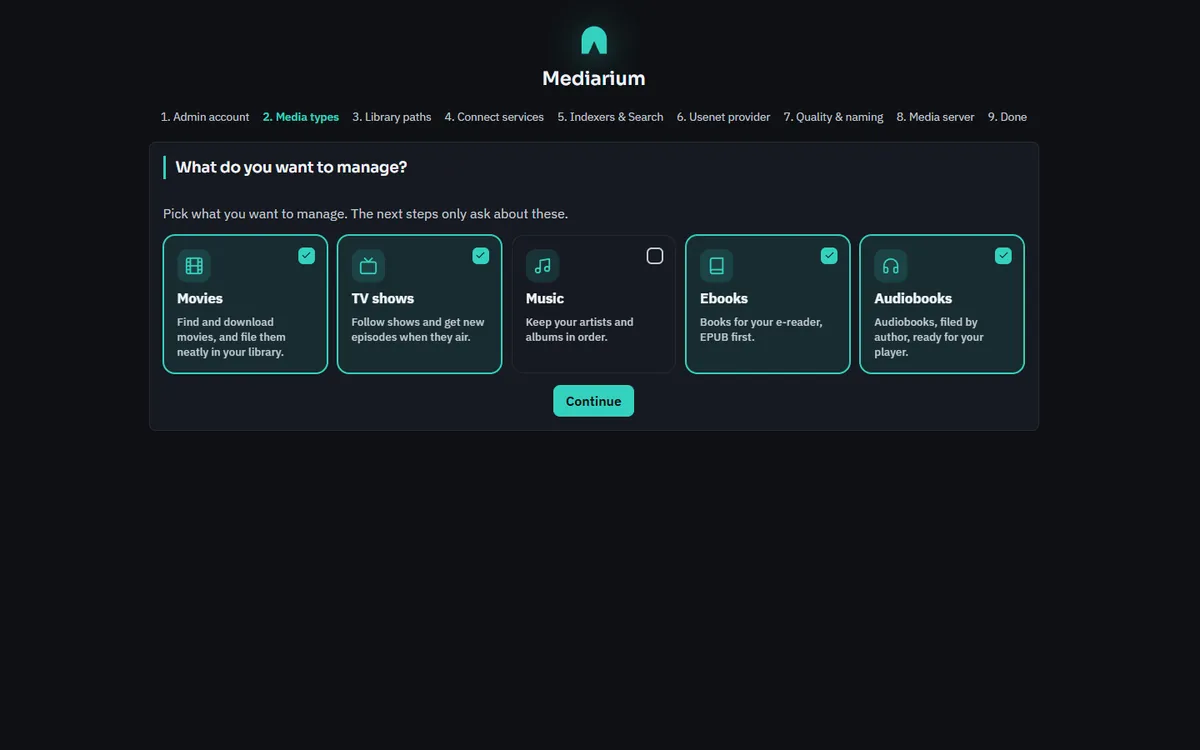
Step 2, Media types.
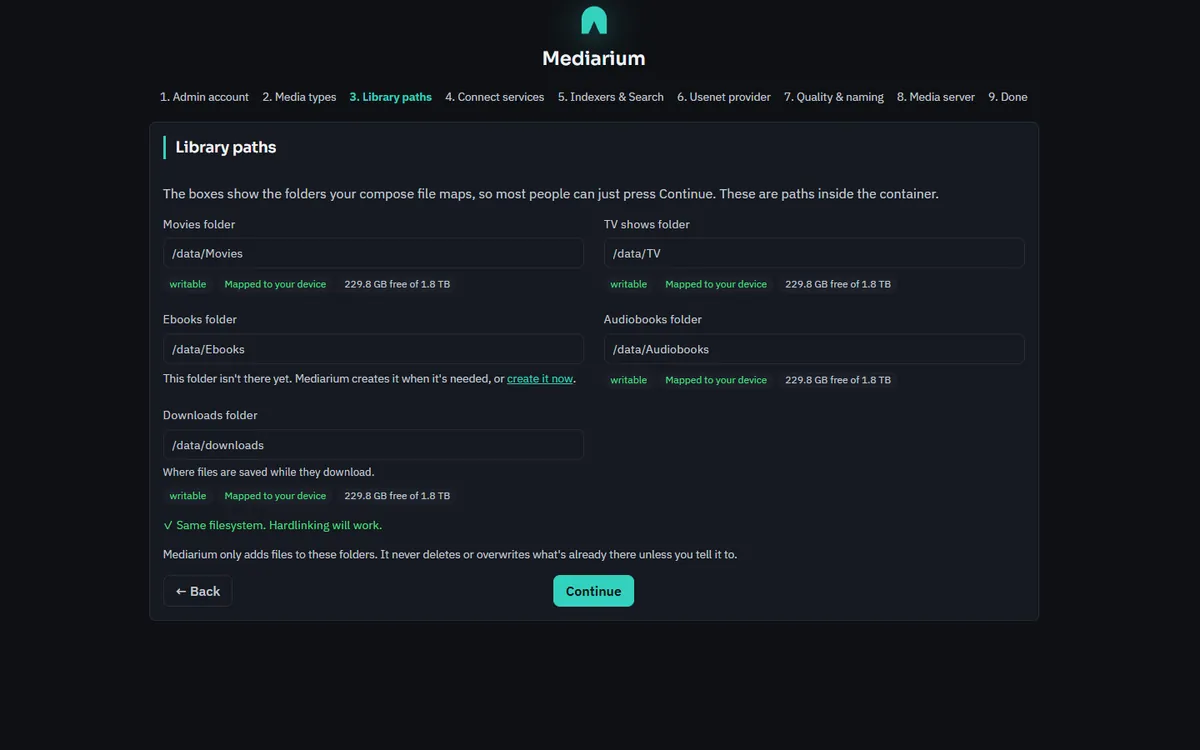
Step 3, Library paths. Each folder is checked as you look at it.
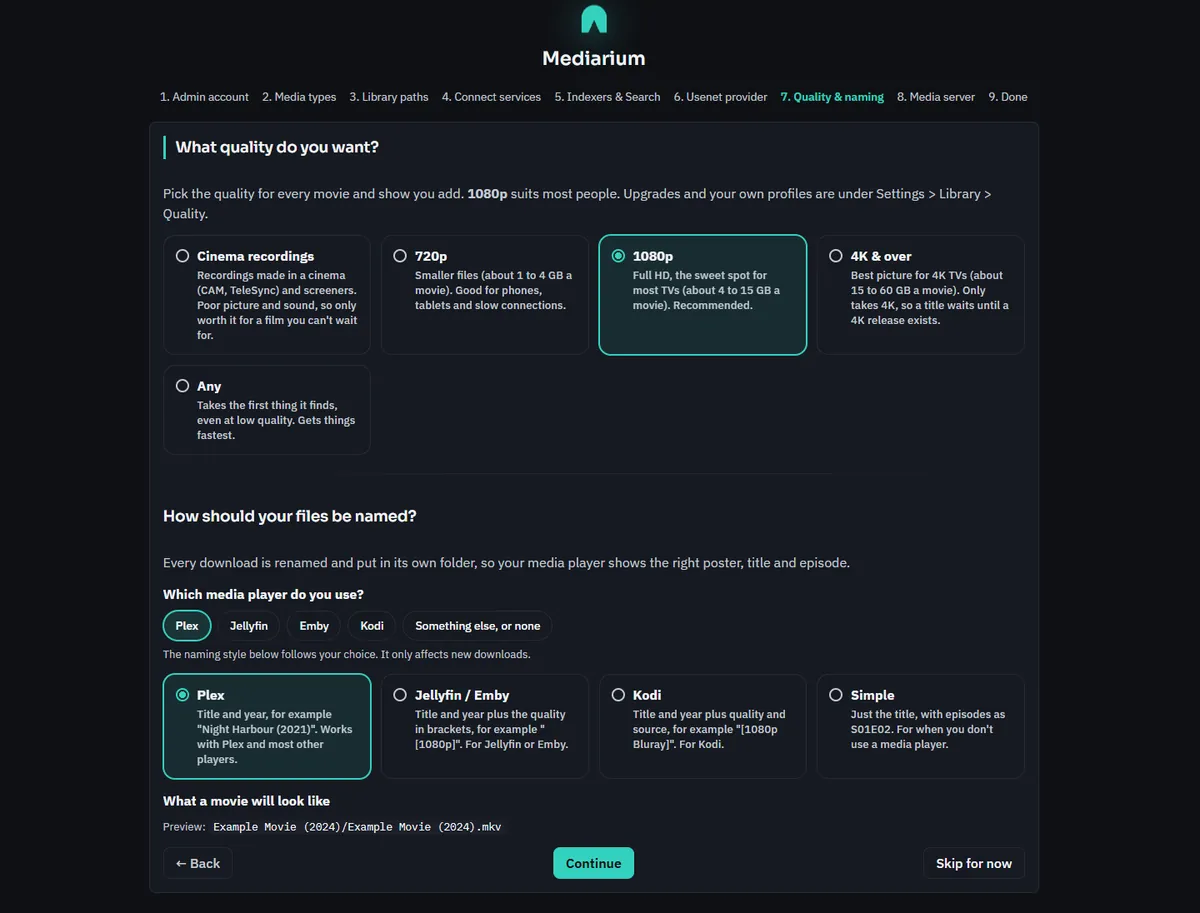
Step 6, Quality & naming. The media player you pick chooses the naming style.
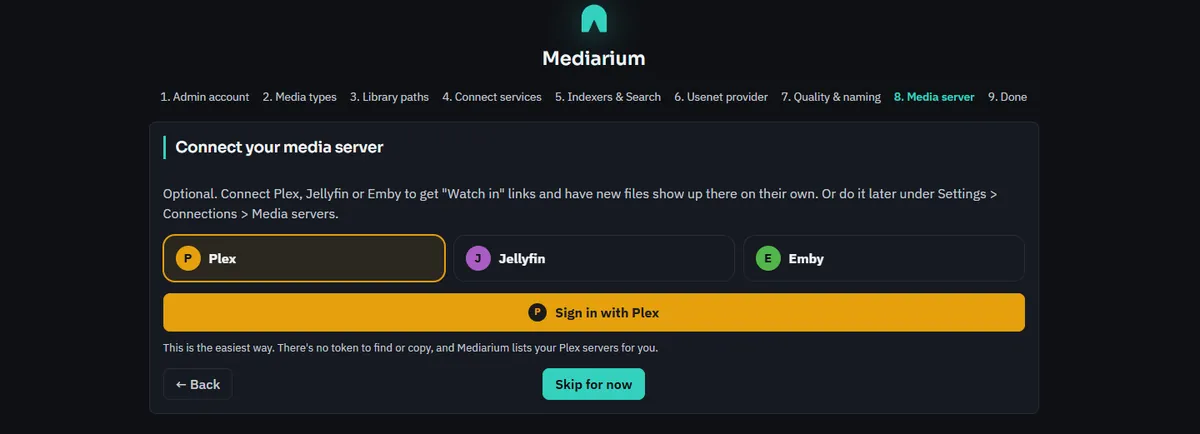
Step 7, Media server. It is optional.
Indexers, Usenet provider, Quality & naming and Media server have Skip for now, and everything can be changed later under Settings. If a check fails, the wizard says what to fix. The last screen checks what you set up. If there is no indexer or download provider, it lists what is missing, each with a button to the right settings page (a media server is listed as optional). Open Mediarium is there either way. Until those are added, the dashboard shows a Getting started card with the same list. It goes away when everything is set up, or when you close it with the x (your browser remembers that).
When the wizard is done you land on the dashboard, which also works on a phone:
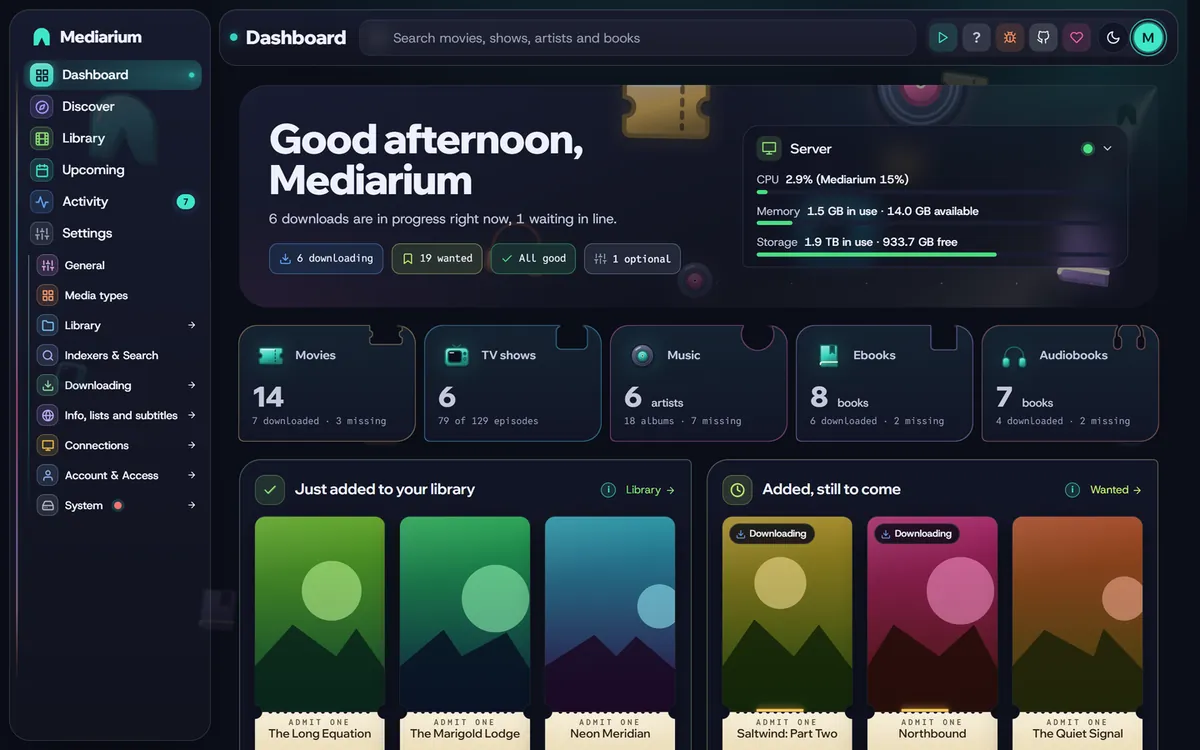
The dashboard after setup: what is downloading, wanted and needs attention, one card per kind of media, and the Server card.
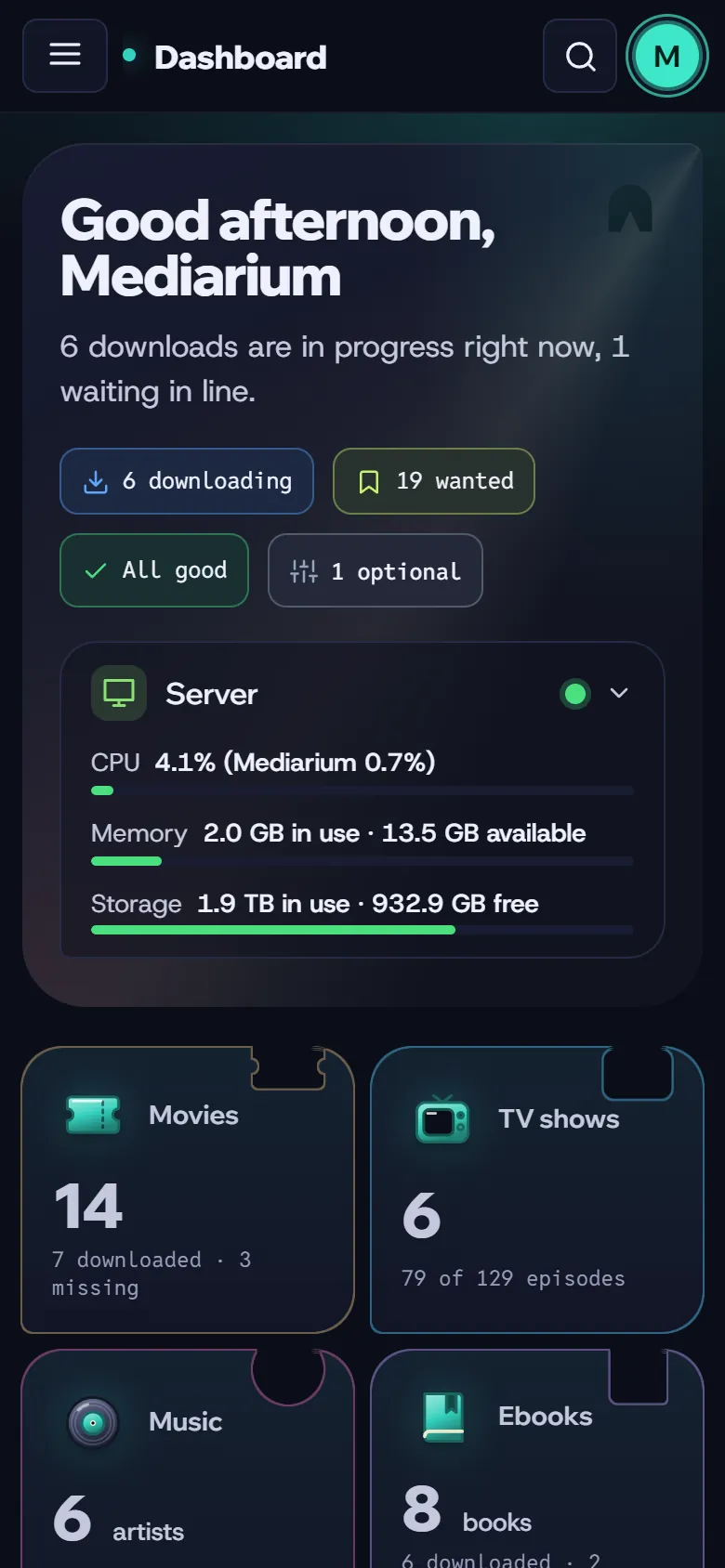
The same dashboard on a phone.
Optional: getting past Cloudflare checks
Some torrent sites show a Cloudflare "checking your browser" page that only a real browser can pass. You only need one of these fixes if a site you use tells you it is behind a Cloudflare check.
Easiest: use the -full version of Mediarium. It has the helper (FlareSolverr) built in and started for you, in the same container. In your compose file, change the image line to:
image: ghcr.io/rdborg/mediarium:latest-full
Then run docker compose pull && docker compose up -d. Nothing else to set up: Settings > Indexers & Search shows "Built in and running". You can switch between latest and latest-full at any time. Your settings and library stay.
The -full download is about 300 MB instead of about 20 MB, takes about 1.2 GB on disk and uses about 250 MB of memory when idle (more for a moment when it opens a page). The helper only listens inside the container, so nothing on your network can reach it. The image is rebuilt every week, so browser fixes arrive quickly.
Or run FlareSolverr as its own container. It is already in the compose file, switched off:
docker compose --profile cloudflare up -d
Then in Mediarium go to Settings > Indexers & Search and enter http://flaresolverr:8191. More in Indexers and Search.
Everyday commands
Run these in the folder with your docker-compose.yml:
| To... | Run |
|---|---|
| See the log | docker compose logs -f mediarium (Ctrl+C to stop watching) |
| Stop Mediarium | docker compose stop |
| Start it again | docker compose start |
| Apply changes to the compose file | docker compose up -d |
| Reset a forgotten password | docker exec -it -u 1000:1000 mediarium /app/app reset-password yourusername (use your own PUID:PGID instead of 1000:1000; on the -full image the program is /opt/mediarium/app) |
Updating
docker compose pull
docker compose up -d
That downloads the newest image and restarts Mediarium with it. Your settings and library stay put, and the database updates itself on start. Nothing updates on its own unless you switch on Install new versions overnight (see below). A restart pauses running downloads; press Resume in Activity.
- Read the changelog first, and back up
/configbefore a big update. There is no way back to an older version once the database has been updated, except restoring a backup. :latestalways follows the newest release. To stay on a version, use its number instead. Each release has these tags (add-fullfor the Cloudflare helper version):
| Tag | Moves when |
|---|---|
ghcr.io/rdborg/mediarium:3.0.0 (:3.0.0-full) |
never |
ghcr.io/rdborg/mediarium:3.0 (:3.0-full) |
a bug-fix release of 3.0 comes out (3.0.1, 3.0.2...) |
ghcr.io/rdborg/mediarium:latest (:latest-full) |
any new release |
A pre-release (for example 3.1.0-beta.1) only gets its exact tag. What the numbers mean: RELEASING.md.
Knowing when there is a new version
Once a day Mediarium asks GitHub for the newest release (the first time about two minutes after it starts, and again in an hour after a failed try). If yours is older, administrators see a card on the dashboard and in the Updates box under Settings > General. It shows what is new and the steps for your kind of install (Synology Container Manager, Unraid or Docker Compose, plus a note for the -full image; a program you run yourself gets its own steps). The card has Hide until the next version. If a notification target has New version ticked, you also get one message per new version. A pre-release is only offered to someone already running one.
- What it sends: one plain web request to
api.github.comwith the program name and version (Mediarium/3.0.0) and nothing else: no account, no library, no settings. GitHub sees your address, as any website does. - Turning it off: untick Look for new versions once a day in the Updates box (stored as
updates.check). Then Mediarium never contacts GitHub by itself. Check now still works when you press it. - If GitHub cannot be reached or is limiting requests, the card says "Couldn't check just now." with the reason (for example that GitHub is limiting requests, or that the address could not be found), and Mediarium tries again later. A failed check (other than one held back by GitHub's limit) is also listed under Settings > System > Logs and errors. Nothing else is affected.
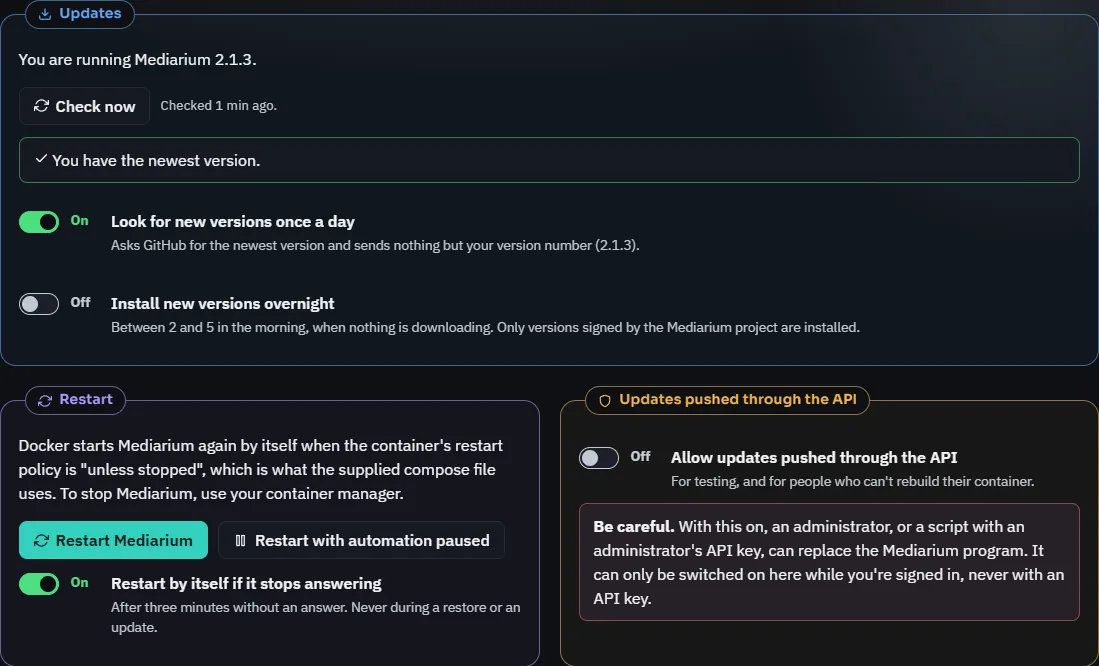
Updates and the pushed-updates switch on General, and Restart on Server. This one shows an up-to-date install.
What's new after an update
The first time you open Mediarium after it moves to a newer version, a short note lists the highlights, with a link to every change. It shows once in each browser and not at all on a fresh install.
Update now (Docker image)
If the release is signed by the Mediarium project, the card and the Updates box also have an Update now button. It asks you to confirm first. Mediarium then downloads the program for your system from the GitHub release, checks the signature of the checksum list against the public key built into your copy, checks the download against that list, starts the new program once to see that it answers as Mediarium, and restarts into it. It takes about a minute. Running downloads are paused, so press Resume afterwards. If any step fails, nothing is installed and the card says why (it is also under Settings > System > Logs and errors). A release without a signature never gets the button, so update the way you installed Mediarium.
- The new program is kept in
/config/update/, next to your database, and the previous one is kept beside it. Your image is not changed. If you later recreate the container from a newer image, Mediarium starts whichever is newer, the image's or the installed one. So updating this way and updating the image later work together. - Going back: the Updates box shows what is installed and has Go back to the image's version. That removes the installed program; Mediarium uses the version inside the image again after a restart. If you change your mind again, press Update now.
- A bad update cannot stop Mediarium from starting. If an installed program stops within 20 seconds of starting, three times in a row, the container's next start puts it aside (as
/config/update/app.failed) and starts the program in the image instead. The card tells you when that happened, and has Remove it to delete the put-aside file. - Overnight: the switch Install new versions overnight installs a new signed release between 2 and 5 in the morning (server time), when nothing is downloading. It does nothing in safe mode.
- Restart: the restart at the end needs Docker to start Mediarium again by itself, which the
restart: unless-stoppedline in the supplied compose files does. Without a restart policy Mediarium stops after installing, and the installed version runs the next time you start the container. - Only in the Docker images, on Linux. A program you run yourself has no entrypoint to start the new file, so it shows the steps instead.
Restarting Mediarium
The Restart box under Settings > System > Server has Restart Mediarium and Restart with automation paused. The second one starts Mediarium once in safe mode (no automatic searching, downloading or refreshing) so the pages load and you can fix a setting. The next restart is normal. Both ask you to confirm and pause running downloads (press Resume in Activity afterwards). Both need something that starts Mediarium again after it exits. Docker, systemd and launchd are found automatically (in Docker that means a restart policy such as the restart: unless-stopped line in the supplied compose file), and MEDIARIUM_SUPERVISED=1 covers any other service manager. Where nothing would start it again, the box says "Restart is not available here. Start Mediarium again yourself." and, on a program you run yourself, offers Shut down instead. To stop a container, use your container manager.
Mediarium also watches itself. Every 30 seconds it checks that its database and web server answer. If either fails for three minutes in a row it restarts itself (never during a restore, an update or a move from another app). The next start says so in the Updates box, under Logs and errors and in the support report. Switch this off with Restart by itself if it stops answering. The Docker images also have a health check on /api/version, so Docker, Synology and other tools show healthy or unhealthy.
Updating without rebuilding the container
This is for testing, and for people who can't rebuild their container. An administrator sends a new program file to the running Mediarium, which restarts into it. It needs no Docker socket and no extra privileges. Leave it off unless you use it: Security explains what it allows.
- As an administrator, switch on Allow updates pushed through the API in Advanced: updates pushed through the API under Settings > General. It asks you to confirm. This can only be switched on here, while you are signed in, never with an API key.
- Create an administrator API key under Settings > Account & Access > Security > API keys.
- Send the file:
bash
   sha=$(sha256sum mediarium | cut -d ' ' -f 1)
   curl -X POST "http://your-server:8264/api/system/update" \
        -H "X-API-Key: $MEDIARIUM_API_KEY" -H "X-Update-SHA256: $sha" \
        -H "Content-Type: application/octet-stream" --data-binary @mediarium
The body is the raw Linux program (at most 200 MB) and X-Update-SHA256 is required. Mediarium refuses the file unless its SHA-256 matches, it is a Mediarium program for the same system (it is started once with --version-check, which only prints its version and exits), and its version is newer than the running one. Add ?force=true to allow the same or an older version, for example to go back; the checksum is still required. A version older than the one inside the image is never accepted, because the image's entrypoint would ignore it. The answer is 202 with {"version": "...", "restartingIn": 2}, then Mediarium exits and Docker's restart policy starts it again.
4. GET /api/system/update shows what is running and what is installed. DELETE /api/system/update removes the installed program (add ?restart=true to restart at once); Mediarium then uses the image's own version. Removing works even while pushing is switched off.
Maintainers can use tools/push-update.sh, which builds the program from the committed source in Docker, works out the checksum and uploads it: see RELEASING.md. The user interface is part of the program, so a pushed program brings its new pages; the browser is told to re-check the page every time, so it never keeps showing the old ones.
If something goes wrong, the installed program lives in /config/update/. Deleting the update folder (with Mediarium stopped) goes back to the image. Starting the container with MEDIARIUM_SKIP_INSTALLED_UPDATE=1 ignores an installed program without deleting it.
Backup and restore
Everything that is not a media file lives in /config. The two files that matter are app.db (settings, library, history, accounts) and secret.key. Keep the two together: secret.key unlocks the passwords and keys saved in app.db. The folder also holds caches (for example music covers and the list of torrent sites) and, if you use one, the update folder.
From the app (easiest): administrators can download a backup zip with Download a backup on Settings > System > Backup and restore. It is safe to make while downloads are running. The zip holds app.db, secret.key and a small note about the version, and no media files. It contains your encryption key, so keep it as private as a password. To restore, choose the zip in the Restore box on the same page and press Restore this backup: Mediarium checks it (a backup made by a newer version of Mediarium than yours is refused; a backup can be up to 1 GB), restarts, and keeps your previous files in a before-restore-<date> folder inside /config. Restoring needs something that starts Mediarium again, like restart: unless-stopped; otherwise start it yourself and the restore is applied then.
Automatic backups: every night, and just before every update, Mediarium saves the same zip in /config/backups and keeps the newest 7 (change it to 3, 5, 14 or 30 in the Backup box). The box lists them with the time and size, each with Download, and has Back up now. To restore one, download it and choose it under Restore. Switch the nightly backup off with Save a backup every night (stored as backup.auto; how many are kept is backup.keep). The files sit next to your database, so also keep a copy somewhere else: switch on cloud backups, or copy one by hand now and then. A backup on the same disk does not help if that disk fails. If a nightly backup can't be saved, it is listed in Logs and errors. Scripts: GET /api/system/backups, POST /api/system/backups and GET /api/system/backups/{name} (the last two need a signed-in administrator, not an API key, because a backup holds every stored secret).
Cloud backups
A backup on the same disk doesn't help if the disk dies or the NAS is stolen. Cloud backups in Settings > System > Backup and restore copy each nightly backup somewhere else. It is off until you set it up.
- What's copied: the same zip as the nightly backup: settings, library, accounts and history (
app.db) andsecret.key. Never media files, so a copy is usually a few megabytes. - Locked before it leaves. Each copy is locked with a passphrase you choose (scrypt and AES-256-GCM) on your server, so the storage company only holds data it can't read. Write the passphrase down somewhere away from the server. Without it a cloud copy can't be opened by anyone, you included. Changing the passphrase only affects copies made from then on.
- Where it can go:
- S3-style storage: Backblaze B2, Wasabi, Cloudflare R2, Amazon S3, MinIO, Synology C2 Object Storage and others. You need the endpoint address (for example
https://s3.eu-central-003.backblazeb2.com), the region (empty meansus-east-1; R2 usesauto), the bucket, and an access key and secret key that can write to it. Keep Bucket name in the path on for everything except Amazon S3 itself. Copies go in a folder inside the bucket,mediarium/unless you change it. - A WebDAV folder: Nextcloud, ownCloud, Synology WebDAV Server, QNAP, or anything served with
rclone serve webdav. Enter the folder's full address (Nextcloud:https://cloud.example.com/remote.php/dav/files/<you>/Mediarium/), a user name and a password (an app password if your server has them). The last folder in the address is created if it doesn't exist. - Test saves a tiny file there, lists the folder and deletes it again, without saving your settings. Copy a backup now copies the newest backup straight away (it makes one first if the newest is more than an hour old).
- How many are kept: the newest 14 by default (7, 14, 30, 60 or 90). Only files named like
mediarium-backup-<date>.zip.encare ever deleted, whatever else is in the folder. - If a copy fails, the box says why and it's listed in Logs and errors (
backup.cloud_failed). The local backup is saved either way.
To restore a cloud copy, download the .zip.enc file from your storage, choose it under Restore, and type the passphrase in the box that appears. On a new server, finish the first-run setup, then restore the same way.
The storage keys, password and passphrase are saved encrypted with the rest of your settings (stored as backup.cloud) and are never sent back to the page. Like downloading a backup, everything here needs a signed-in administrator, not an API key. Scripts: GET and PUT /api/system/backups/cloud, POST /api/system/backups/cloud/test, POST /api/system/backups/cloud/upload and GET /api/system/backups/cloud/list.
By hand:
docker compose stop
cp -a ./config ./config-backup-$(date +%F)
docker compose start
While Mediarium runs, its newest changes sit in two small files next to the database, app.db-wal and app.db-shm. They belong to app.db, so only copy app.db on its own with Mediarium stopped. Copying the whole config folder as above, or using the in-app backup, always gets everything.
To restore by hand: stop Mediarium, put the backup folder back in place of config, start it again.
Monitoring with Prometheus
Mediarium has a page of numbers for Prometheus and Grafana, at /metrics (also /api/metrics; with a URL base it is /mediarium/metrics). It is for administrators only, so it is never open: a request needs an administrator's API key, sent as Authorization: Bearer <key> (what Prometheus sends) or as the X-API-Key header. Make the key with Make a key for other apps on Settings > Connections > Other apps, or under Settings > Account & Access > Security > API keys. A basic account's key is refused.
Put the key in a file and tell Prometheus where it is. This is a complete scrape config:
scrape_configs:
  - job_name: mediarium
    metrics_path: /metrics          # /mediarium/metrics with a URL base
    scrape_interval: 60s
    authorization:
      type: Bearer
      credentials_file: /etc/prometheus/mediarium.key   # a file holding only the key
    static_configs:
      - targets: ['mediarium:8264']
    # scheme: https                 # if you scrape through your reverse proxy
Check it by hand with curl -H "Authorization: Bearer <key>" http://mediarium:8264/metrics. Without a key the answer is 401.
What you get (all gauges, names start with mediarium_):
| Metric | Labels | What it counts |
|---|---|---|
up |
1 while the program answers | |
build_info |
version |
Always 1; the label is the running version |
start_time_seconds |
When it started | |
library_movies_total |
status (missing, downloading, downloaded) |
Movies |
library_series |
Shows | |
library_episodes |
status (downloaded, missing) |
Episodes |
library_music_artists, library_music_albums |
status on albums |
Music |
library_books |
format (ebook, audiobook), status |
Books |
library_size_bytes |
kind (movies, tv) |
Size of the files |
wanted_missing |
kind (movie, episode, album, ebook, audiobook) |
What the Wanted page lists as missing |
queue_items_total |
status (queued, downloading, importing, paused, stopped, completed, failed, conflict) |
The download queue |
downloads_active |
Downloads running now | |
health_warnings |
level (error, warn, info) |
Problems on the dashboard |
disk_free_bytes, disk_total_bytes |
kind, path |
Space on the drive of each library and download folder |
indexer_up |
indexer |
1 if the last check of the indexer worked, 0 if it failed |
usenet_server_up |
server |
The same for Usenet logins |
indexers |
state (enabled, disabled) |
Indexers set up |
service_limit_hits |
service (tmdb, trakt, opensubtitles) |
Times a service said "too many requests" in the last 24 hours |
indexer_up and usenet_server_up come from the connection watch, so they appear after its first check and stay missing while that is switched off. The wanted counts and the health numbers are worked out at most every 30 seconds, so a faster scrape does not make Mediarium work harder. The older names library_movies_total and queue_items_total are unchanged.
Uninstalling
docker compose down
docker image rm ghcr.io/rdborg/mediarium:latest
This removes the container and the image. Your folders stay on disk:
- Delete the
configfolder to remove Mediarium's settings and database for good. - Your
datafolder holds your downloads, movies and TV. It is yours: keep it, or delete only what you no longer want.
One command instead: docker run
If you prefer not to use a compose file, this does the same in one command. Replace the two /path/to/... folders and the PUID, PGID and TZ values:
docker run -d --name mediarium --restart unless-stopped \
  -p 8264:8264 -p 58264:58264/tcp -p 58264:58264/udp \
  -e PUID=1000 -e PGID=1000 -e TZ=Etc/UTC \
  -e DOWNLOADS_DIR=/data/downloads -e MOVIES_DIR=/data/movies -e TV_DIR=/data/tv \
  -v /path/to/mediarium/config:/config \
  -v /path/to/data:/data \
  ghcr.io/rdborg/mediarium:latest
For the optional folders, add for example -e MUSIC_DIR=/data/music (and EBOOKS_DIR, AUDIOBOOKS_DIR) for a folder inside /data, or -v /path/to/music:/music for one somewhere else.
To update: docker pull ghcr.io/rdborg/mediarium:latest, then docker rm -f mediarium and run the same command again (your folders are kept).
Using a Docker app
Many NAS systems and servers have an app for Docker. The same compose file works in all of them: paste it, change the folders, start it.
| Tool | Where to paste the compose file |
|---|---|
| Synology Container Manager (DSM 7.2+) | Project → Create. Full guide: Synology |
| QNAP Container Station 3 | Applications → Create. Guide: QNAP |
| Unraid | Docker tab → Add Container (a form, not compose). Guide: Unraid |
| Portainer | Stacks → Add stack → Web editor, then Deploy the stack |
| TrueNAS SCALE 24.10 or newer | Apps → Discover Apps → the menu next to Custom App → Install via YAML |
| CasaOS / ZimaOS | App Store → the + menu → Install a customized app → Import, then paste |
| OpenMediaVault (with omv-extras) | Services → Compose → Files → Add |
Mediarium is one image for all of them, so there is nothing to wait for: pasting the compose file (or filling in the same fields) is the install. See What runs where.
Docker Desktop on Windows or Mac can run Mediarium too, which is fine for trying it out. For a machine that runs day and night, a NAS or Linux server is the better home: sharing Windows or macOS folders with Docker is slower, and hardlinks may not work there.
Troubleshooting
The page does not open.
Check that it is running: docker compose ps should show mediarium as running, and docker compose logs mediarium should show a line that starts with Mediarium listening on :8264. Then check that your server's or NAS's firewall allows port 8264, and that no other app is already using it (if one is, change the left number of 8264:8264).
"not writable" in the log, or a folder warning on the dashboard.
PUID/PGID do not match the owner of that folder. Find the owner's numbers with ls -ln /your/storage/data, then either set PUID/PGID to them and run docker compose up -d, or give that user write access on the server (on a NAS: the shared folder's permissions page).
"Finished downloads will be copied, not moved" in the wizard, or disk use doubles.
Usually downloads, movies and tv are mapped as separate volumes lines, or they sit on different disks, shares or datasets. Use one /data folder: see Why one /data folder?.
Bind mount failed: ... does not exist when starting.
A folder on the left side of a volumes line isn't there. Create it on your server with exactly that name (capital letters count) and start again.
The wizard shows /movies, /tv and /downloads, or "This folder isn't mapped to your server yet".
The DOWNLOADS_DIR, MOVIES_DIR and TV_DIR lines are missing, or you changed the file after the first start. Fix environment, then run docker compose up -d. For a folder that isn't mapped, the wizard shows the line to add.
"is not mapped to a folder on your host" in the log, or the wizard shows up again after a restart.
That folder only exists inside the container, so it is lost when the container is recreated. Check the volumes lines, and that DOWNLOADS_DIR, MOVIES_DIR and TV_DIR point inside /data.
Search finds nothing, or downloads never start. Add at least one indexer under Settings > Indexers & Search and press its Test button. For Usenet, add your provider under Settings > Downloading > Usenet and press Test connection. More in Indexers and Search and Downloading.
A download finished but was not imported. Open the title and look at its activity log: it says what happened in plain words (Activity). Password-protected or damaged releases are blocklisted and the next one is tried.
Pages do not load, or say "Reconnecting to Mediarium".
Update to the newest version first. Then check that the settings folder (/config) is on a disk inside your server, not on a network share: the dashboard says so when it isn't. Mediarium logs any database call that takes more than three seconds, and a page that waits more than ten seconds shows "Mediarium is taking longer than usual to answer" with a Try again button. If the pages still won't open, start in safe mode: add MEDIARIUM_PAUSE_AUTOMATION=1 under environment and run docker compose up -d. Nothing searches, downloads, refreshes or checks connections by itself, so the pages load and you can pause things or read the log. Remove the line and run docker compose up -d again to go back to normal. If the pages do open, Restart with automation paused (see Restarting Mediarium) does the same for one start.
The time in the log is wrong.
Set TZ and run docker compose up -d.
Still stuck? First look at Settings > System > Logs and errors: it lists what went wrong, in plain words, with what to try (Logs and errors). If the pages open, press Copy for support on the same page. It copies your version, how the database is doing, the setup warnings, the latest problems from Logs and errors and the last 500 lines of the log, with passwords, keys and tokens left out. Paste it into an issue together with how you installed Mediarium. If the pages do not open, use the log instead (docker compose logs mediarium) and remove API keys, passwords and VPN keys before pasting anything.
Building from source
For people working on Mediarium itself. You need Docker and a copy of the source:
git clone https://github.com/rdborg/Mediarium.git
cd Mediarium
cp docker/.env.example .env
docker compose up -d --build
docker/docker-compose.dev.yml builds the image from the source (the frontend and the Go program are built inside Docker, so you need nothing else installed) and uses config, downloads, movies, tv and music folders in the top folder of the repository (with commented lines for ebooks and audiobooks folders). The .env file (copied from docker/.env.example) points Docker at that file and sets the port and other values. Or build the image alone with docker build -t mediarium:local . and use image: mediarium:local in your compose file.
Optional build arguments TMDB_API_KEY, OPENSUBTITLES_API_KEY and TRAKT_CLIENT_ID build in app-wide keys; without them the wizard asks for your own. Coding conventions and running the tests: CONTRIBUTING.md.
See also: What runs where · Synology · Unraid · QNAP · Linux · Features · Legal