Docs / Using Mediarium
Downloads
How Mediarium's built-in downloaders use your network and disk: the torrent port, seeding, debrid services and external download clients, what happens to downloaded files after they're imported, the clean-up, and what removing a title deletes.
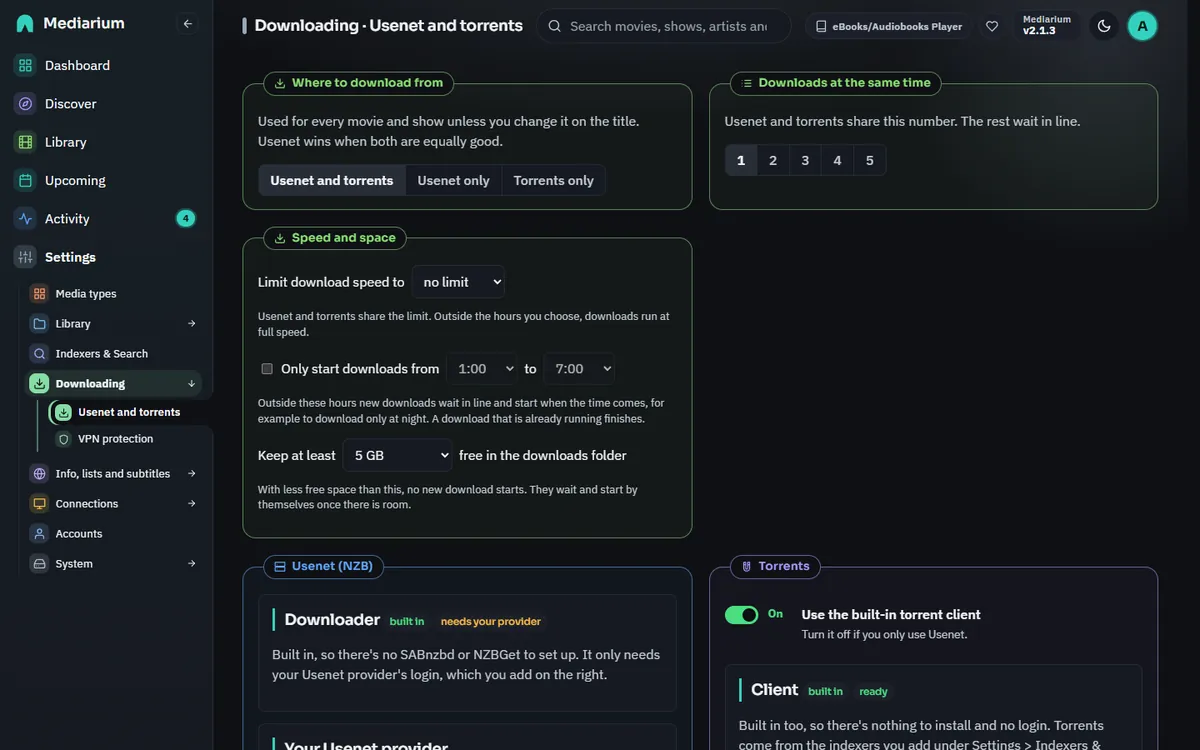
Settings > Downloading: the Usenet page (the built-in Usenet downloader, waiting for a provider here) and the Torrents page (the built-in torrent client).
The Downloading pages
Settings > Downloading has four pages: Usenet, Torrents, VPN and proxy and Download rules. The cards below are on Download rules, Usenet and Torrents. The settings in Speed and space and Checks on releases are on Download rules (the age of Usenet posts is on the Usenet page), and you can add a download by hand from Activity.
- Where to download from (Download rules): Usenet and torrents, Usenet only or Torrents only for every movie and show. You can change it for a single title when you add it or on its page. When a Usenet release and a torrent release are equally good, Usenet wins. Choosing Usenet only also switches the torrent client off.
- Downloads at the same time (Download rules): how many downloads run together (1 to 5). See below.
- Usenet (NZB) (Usenet page): the built-in downloader needs only your provider's login. Add your Usenet provider takes the server address, port, username, password, number of connections and whether to use SSL. Press Test connection first. Add server (or Save server) works once the test has passed. Each server has Test, Edit, Disable and Remove. A second server (Add a backup provider) is used for articles your main one is missing. Priority 0 is the main provider, higher numbers are backups.
- Torrents (Torrents page): the switch Use the built-in torrent client, Client settings (listen port, seed ratio limit, seed time limit; press Save), Stalled torrents, Torrent options (the router port, new torrents in order, upload limit, categories), a Debrid service and Use your own torrent client. The Download clients tab in Activity shows the router port and links here.
Torrent port (58264)
All torrents run in one built-in engine that listens on port 58264, TCP and UDP. The port is in the range never assigned to any service (49152 to 65535), so it's unlikely to clash with anything else, and it's easy to remember next to the web interface's 8264.
- It's optional. Torrents download without it, because Mediarium connects out to peers either way. Publishing the port lets other peers connect to you too. That finds more peers (faster downloads, fewer stalled torrents) and lets you seed properly.
- Docker: the compose files in this repository publish it for you:
```yaml
ports:
- "8264:8264"
- "58264:58264/tcp"
- "58264:58264/udp"
``
  With
docker run, add-p 58264:58264/tcp -p 58264:58264/udp`. Keep the same number on both sides of the colon.
- Router: for peers on the internet to reach you, the port has to be open on your router. Mediarium asks the router to do it with UPnP and then NAT-PMP, and the torrent client card says what came of it (see Opening the port on your router). If no router answers, forward port 58264 (TCP and UDP) to the machine running Mediarium yourself, as you would for any torrent client.
- Changing it: Settings > Downloading > Torrents > Client settings > Listen port (stored as
torrent.listen_port). If you change it, publish the new number instead (for example51413:51413/tcpand/udp).0means 58264 (the box says "0 = the default, 58264"). Installs that had saved0(which used to mean "any port") now use 58264. A port you saved yourself is kept. - If the port is taken by another program on the same machine, the engine falls back to a port the system picks and says so in the log.
GET /api/downloads/statusthen reports the port in use astorrent.activePort. - Is it working? The Client card says so in plain words: whether the port is open right now, and whether another peer has connected to you yet. The same facts are in
GET /api/downloads/status(torrent.listenPort,torrent.listening,torrent.activePort,torrent.activeTorrents,torrent.incomingSeenandtorrent.lastIncomingAt). The engine only listens while a torrent is downloading or seeding, and a peer only connects when it wants a torrent you have. So "not seen yet" right after starting is normal. If it still says that after a while of seeding, the port is probably not reachable: it isn't published, it isn't forwarded, or a firewall is blocking it. - While a VPN is connected (Settings > Downloading > VPN and proxy; see VPN protection), torrent traffic only goes out through the tunnel and nothing listens on the host at all, so no incoming connection is ever seen. That's expected, and the port card says "Not used while your VPN is on".
Controls of the built-in torrent client
These are for the built-in torrent client only. Torrents that go to a debrid service or a download client are steered there. Everything below is off, or the same as before, until you change it. The options for all torrents are on Activity > Download clients, in the torrent client card, under Torrent client options. The choices for one torrent are under Details on its row in Activity. Only administrators see them.
Choosing files
A torrent often holds more than the film or episode you want: samples, notes, extras, or the other episodes of a season pack. Open Details on a torrent that is downloading and you get its list of files, each with a tick box, its size and how much is there. Untick a file and it is not downloaded. Tick it again and it is. You can do this while it downloads. At least one file has to stay ticked. Once the download is finished the list is only for reading.
- Leave out samples and notes is on by default (
torrent.skip_junk). When a torrent is added, these are left out: sample clips (a short video called sample, or anything small in a folder called Sample), and.nfo,.txt,.exe,.urland.lnkfiles. A.txtfile is kept in a book, where it can be the book. A file you tick yourself stays ticked. If everything in a torrent looked like junk, nothing is left out. - Only the wanted season of a pack is off by default (
torrent.pack_only_wanted). When it is on and Mediarium grabbed a pack for one season of a show, files that say they belong to another season (or to the specials) are left out, found byS02E05in the file name or a folder calledSeason 2. When it grabbed a single episode, other episodes of the pack are left out too. A file whose name says nothing about the season stays. If no video in the pack can be matched to the season, nothing is left out. - Pieces that two files share are still downloaded, so a file you left out can be partly on disk. It is never imported.
- Importing a partial pack works. The files you left out are not imported. The episodes the pack did not deliver go back to wanted, as they do for any pack that is missing something.
- Your choice is kept while the download is paused or after a restart, and the seeding ratio counts against the size of what was downloaded.
Download in order
Download new torrents in order (torrent.sequential_default, off by default) asks for the pieces from the first to the last, so a video can be played while it downloads. The first piece of every file and the last piece of the file being read are asked for early too, because many video files keep their index at the end. Each torrent has its own choice under Details: Use the default, On or Off. It is a little slower than the usual order, which favours the rarest pieces, and a torrent downloaded in order is harder on the peers that have it, so leave it off unless you want to preview.
Speed limits
- Per torrent: under Details, Download KB/s and Upload KB/s limit one torrent. Empty means no limit of its own. The torrent is held back whenever it has taken more than its share, so its speed stays near the limit on average, but it can come in bursts and a limit below about 50 KB/s is rough.
- Upload limit for the whole client: Upload limit (KB/s) in the torrent client card (
torrent.upload_limit_kb, no limit by default). It is separate from the download limit in Settings. The hours you set for the download limit ("Only from ... to ...", see Speed and space) also decide when the upload limit applies. - The limit of a torrent, the upload limit and the download limit all apply together, and the slowest wins.
Categories and save folders
A category files torrents in a folder of their own. Under Categories in the torrent client card, add a name and, if you like, a folder name, then pick which category each kind of download gets: Movies, TV shows, Music and Books. With none picked (the default) torrents are saved in incomplete/queue-N as always.
- With a category, a torrent is saved in
incomplete/<folder>/queue-N, inside the downloads working folder, for exampleincomplete/movies/queue-12. The folder is made when the first torrent needs it. A category without a folder name uses the working folder itself. - A folder name is one plain name: no
/,\,:or the like, and it can't start with a dot or withqueue-. Two categories can't share a folder, and there can be 12 categories. - The category is chosen when a torrent starts, and kept: changing the categories later never moves a download that is already running or paused.
- Activity shows the category next to the word torrent on each row, and under Details.
- The clean-up looks inside the category folders and removes a folder once nothing is left in it.
Seeding rules for one indexer
Private trackers have their own rules. On Settings > Indexers & Search, a torrent indexer has Seeding rules: Seed until ratio and or for hours. A torrent from that indexer stops seeding at the first of the two that is reached. An empty box follows the global limit (torrent.seed_ratio_limit and torrent.seed_time_limit_h), and 0 means no limit of that kind. A rule applies to torrents that start downloading after you save it. A torrent that came from no indexer, or from one without a rule, uses the global limit.
Opening the port on your router
Open the port on my router (torrent.port_mapping, on by default, as the built-in client always did) asks the router to forward the listen port to this machine, so peers can connect to you. It tries UPnP first and NAT-PMP if no UPnP router answers. The torrent client card shows the answer next to Router port:
- open: "the router forwards port 58264 (UPnP)", or NAT-PMP. If the router gave another port, that one is shown.
- not mapped: no router opened the port. Forward it yourself if peers can't reach you.
- not used: the switch is off, or a VPN or proxy carries the torrent traffic (nothing listens on your home connection then).
- checked when the first torrent starts: the client only runs, and so only asks, while a torrent downloads or seeds.
The request is made when the client starts and the port is taken off the router when it stops. Routers answer UPnP and NAT-PMP only to machines on the same network, so inside Docker's default bridge network no router is usually found. Run the container with host networking if you want this, or forward the port yourself as described above. Switching the option off removes the mapping at once. GET /api/downloads/torrent-options returns the result as portMapping (state, method, port, externalIp).
Let torrents use trackers on my own network (torrent.allow_local_addresses, off by default) decides whether the trackers, web seeds and magnet addresses a torrent names may be on your home network or on the machine Mediarium runs on. A torrent can name any address, so by default these are refused (and so is a UDP tracker at such an address). Turn it on only if you run a tracker or web seed at home, over a LAN or Tailscale. It applies when Mediarium restarts. Peers are not affected: other computers on your network can still send and receive pieces. The answer from an HTTP tracker is also read only up to 1 MB, which is far more than a real tracker sends. allowLocalAddresses in GET/PUT /api/downloads/torrent-options.
For scripts
Administrators only: GET and PUT /api/downloads/torrent-options (sequentialDefault, skipJunk, packOnlyWanted, uploadLimitKB, portMapping, categories, categoryByKind), GET and PUT /api/queue/{id}/torrent (sequential as default, on or off, downLimitKB, upLimitKB), PUT /api/queue/{id}/torrent/files (skip, the list of file paths to leave out), and GET /api/indexers/seed-rules with PUT /api/indexers/{id}/seed-rules (ratio, hours; null follows the global limit).
Usenet connections
Your Usenet provider lets each login open only so many connections at once, and your plan says how many. Mediarium keeps to the number you set on the server for all downloads together, so two downloads at once share it. A new server starts at 10. Raise it once you know your plan allows more.
If the provider says "too many connections" (usually because another program, like SABnzbd, uses the same login), Mediarium lowers the number for the rest of the session, waits a little and tries again, so the download carries on. After several minutes of being refused it stops, and the queue says: "Your Usenet provider says there are too many connections on this login. If another program (like SABnzbd) uses the same account, stop it or lower the number of connections here." The Test button says the same. The number it settled on is in the report from Copy for support (Settings > System > Logs and errors).
Find the right number. Under each Usenet provider in Settings > Downloading > Usenet, Find the right number opens connections to it one at a time, up to the number you set, until the provider says there are too many, then closes them again and tells you how many it let in. If that is fewer than you set, Use N sets it for you. If the provider refuses even the first connection, something else is holding the login (another program, or a Mediarium from a few minutes ago; providers take a while to notice a closed connection), and the message says so. It won't run while a download is using the server (POST /api/usenet-servers/{id}/probe, administrators only; answers accepted, requested, refused and a message).
When the provider keeps refusing connections, the dashboard's Needs your attention list also says so ("news.example.com allows fewer connections than you set", with a button to the test), for twelve hours after the last refusal.
Connections close when a download finishes, fails or is cancelled, and when you remove or switch off a server or change its address or login. Lowering the number of connections takes effect at once, even for a download that's running.
What is checked when you save
Every field in Settings points out a mistake under the box when you leave it, or when you press the button, before anything is sent. The server checks the same things, so a script can't save a value the page would refuse.
- Usenet servers: the server is a bare host name or IP address (
news.example.com, nohttps://, no port and no path), the port is 1 to 65535, connections are 1 to 100 and the priority is 0 to 99. A username and password go together. - Torrents: the listen port is 0 (use the default) or 1 to 65535, the seed ratio is 0 to 1000 and the seed time is 0 to 87,600 hours. 0 means unlimited for both.
- Downloads at the same time: a whole number from 1 to 5.
- VPN: the endpoint is
host:portwith a port from 1 to 65535, the two keys are 44-character WireGuard keys, and the tunnel address is an IP address with an optional/prefix. - Folders: each folder must be a full path, starting with
/, a drive letter such asD:\, or a network path such as\\server\share. A custom movie file name must include the movie's title and an episode file name its season and episode; both use only known tokens and can't contain/or\(see Library).
Only what you change is checked, so a value an older version saved never stops you saving something else.
Debrid services (Real-Debrid, TorBox)
Instead of downloading torrents here, Mediarium can hand them to a debrid service. The service downloads the torrent on its own servers, and Mediarium then downloads the finished files from it over https into the download's folder, where unpacking and import work as for any other download.
- Set up: Settings > Downloading > Torrents > Debrid service. Pick Real-Debrid or TorBox, paste your API key (Real-Debrid: real-debrid.com/apitoken; TorBox: torbox.app/settings), press Test to see the account and when its premium ends, then Save. Most downloads need a premium account.
- The built-in torrent client can stay off. Torrent sites are still searched while a debrid service is set, and torrent releases go to the service. No torrent traffic leaves your home, nothing is seeded from here, and the VPN for torrents isn't needed for them. Seeding settings don't apply.
- Progress: the first half of the bar is the service downloading the torrent, the second half is Mediarium bringing the files home. A download that was paused or interrupted carries on where it stopped, also after a restart, without adding the torrent to the service again.
- When the service gives up (no one sharing it, a dead or harmful torrent), or nothing moves there for 6 hours, the release is blocklisted and, with automation on, the next-best one is tried, as with a stalled torrent.
- When the files are home, the torrent is removed from your account on the service, so it doesn't use up your slots.
- The service's API key is stored encrypted. Requests to the service go through the proxy set for indexers, if you have one (Settings > Downloading > VPN and proxy > Proxy).
- Mediarium never mounts anything or streams from the service: no special container permissions are needed.
Releases that are already cached (TorBox)
TorBox keeps torrents other people already downloaded. When you grab one of those, it is ready at once. TorBox will tell Mediarium which torrents it has, so you can see them and have them preferred.
- In the release list: a green Cached tag on a release means TorBox already has it. Mediarium asks once per search, for the whole list, and remembers the answer for 5 minutes. A release with no tag is either not cached or not known: some indexers give no torrent hash, and a plain .torrent link is not downloaded just to find out.
- In automatic searches: among releases of the same quality, a cached one is picked before one that has to be downloaded first. The quality profile is applied first, so a release the profile would refuse is never picked for being cached, and a cached release of a lower quality never wins over a better one. The delay profile, size limits, blocklist and the order of your indexers and protocols work as before: a cached release is not treated specially there. Between two releases that score differently under the profile's preferred terms, the higher score still wins.
- Settings > Downloading > Debrid service (with TorBox chosen):
- Prefer releases TorBox already has is on by default for TorBox. Turn it off and Mediarium stops asking TorBox about torrents: no tags and no ranking, and no hashes are sent (
debrid.prefer_cached). - Accept a lower score for a cached release is off by default. Turn it on and a cached release also wins over a higher-scoring one of the same quality (
debrid.cached_lower_score). It still never wins over a better quality. - What is sent: only the info hashes of the torrents in the results, to TorBox's
checkcachedcall. Nothing else. - If TorBox is slow or unreachable, the search carries on without the information, after waiting at most 5 seconds. Mediarium then leaves TorBox alone for a minute before it asks again. A failed check never stops a search or a download.
- Real-Debrid has no cache check: it turned off its availability endpoint (
instantAvailability) at the end of 2024, and its API documentation no longer lists it, so nothing is marked or preferred when Real-Debrid is the service. - The tag shows in the release lists of movies, shows and books, and in the main search. Music release lists don't show it yet.
Download clients (qBittorrent, RDT-Client, Decypharr)
If you already run a torrent client, Mediarium can hand torrent releases to it instead of downloading them itself. It works with qBittorrent and with programs that copy qBittorrent's web interface, such as RDT-Client and Decypharr. The client downloads the torrent into its own folder and can keep seeding it there. When it's done, Mediarium imports the files straight from that folder. It never moves, renames or deletes the client's files.
Torrent releases go to one place only: the built-in torrent client, a debrid service or a download client. Saving a download client turns the debrid service off, and saving a debrid service turns the download client off. The built-in torrent client can stay off: torrent sites are still searched while a download client is set.
Set up: Settings > Downloading > Torrents > Use your own torrent client. Pick the client, then fill in:
- Address: where you open its web page, for example
http://192.168.1.10:8080. In Docker, use the client's container name if both are on the same network (http://qbittorrent:8080). - User name and Password: the web login. Leave them empty if the client lets Mediarium in without one. The password is stored encrypted and never shown again.
- Category: torrents are added in this category (
mediariumunless you change it), so they're easy to find in the client. Each torrent also gets a tag likemediarium-q12, which is how Mediarium finds it again.
Press Test to check the address and login (it shows the client's version), then Save.
qBittorrent
Use the address and login of qBittorrent's Web UI (Tools > Options > Web UI). Mediarium needs to see qBittorrent's download folder: mount the same folder into both containers. Mounting one parent folder (for example /data) into both, with the same path inside each, means no path mapping is needed and imports can use hardlinks instead of copies.
RDT-Client
RDT-Client sends torrents to Real-Debrid or another debrid service and downloads the finished files to its own folder. Add it with its address and login, and pick RDT-Client. If you set RDT-Client to download real files, nothing else is needed beyond the shared folder. If you use its symlink mode, set Symlinks may point into as for Decypharr below.
Decypharr
Decypharr gives each finished torrent a folder of symlinks that point into its rclone mount of your debrid account. Mediarium refuses symlinks in downloads unless you say where they may point:
- Mount Decypharr's rclone mount into the Mediarium container at the same path Decypharr uses (for example
/mnt/remote), and also into your media server's container, since the library gets links to it. - Set Symlinks may point into to that mount, as Mediarium sees it (
/mnt/remote).
A symlink is then imported as a new symlink to the same file, but only when the file it finally leads to is inside that folder. Links that lead anywhere else, through other links or .., are refused, and the download fails with a message saying so. Real files are imported the usual way.
Path mapping
The client reports where it saved a torrent as it sees it. If it runs in another container or on another computer, that path can be different inside Mediarium. Fill in both fields:
- The client's folder: the folder as the client reports it, for example
/downloads. - The same folder in Mediarium: that folder as Mediarium sees it, for example
/data/torrents.
A download the client saved at /downloads/Movie.2024.1080p is then looked for at /data/torrents/Movie.2024.1080p. Leave both empty when the paths are the same. When Mediarium can't see a finished download, it fails with a message that points here.
How a download goes
- The magnet link or
.torrentfile is sent to the client. The progress bar follows the client's progress. Pausing or stopping in Activity leaves the torrent in the client; resuming picks it up again, also after a restart, without adding it twice. - If the client says the torrent has an error, or nothing moves for 6 hours, the torrent is removed from the client with its files, the release is blocklisted and, with automation on, the next-best one is tried.
- When the torrent is done, the download's own folder (
incomplete/queue-N) gets a link to each of the torrent's files. For a single-file torrent that's only that one file, never other files that sit next to it in the client's folder. Archives (RAR, ZIP, 7z) are unpacked into the download's own folder, not into the client's folder. Files are imported from the client's folder with a hardlink when possible, otherwise copied. - Afterwards the download's own folder is cleaned up as usual. That removes only the links and what was unpacked, never the client's files.
- Remove from the client after import is off by default, so the torrent keeps seeding as long as the client wants it to. Switch it on to have the torrent removed once it's in your library. Its files go with it, unless they are symlinks (the library's links still need them) or the torrent was already in the client before Mediarium sent it.
- Seeding limits and the VPN settings for the built-in torrent client don't apply: the client handles its own traffic.
Seeding
A finished torrent is imported straight away and keeps seeding in the background until its seeding goal is met: the seed ratio limit (torrent.seed_ratio_limit, uploaded divided by size, for example 2.0) or the seed time limit (torrent.seed_time_limit_h, hours), whichever comes first. A torrent indexer can have rules of its own, and a torrent from it follows those instead (see Seeding rules for one indexer). With both at 0, a torrent seeds until Mediarium stops or torrents are switched off. Seeding doesn't survive a restart. When the goal is met the torrent stops and its data is deleted from the downloads folder (see below).
Downloads at the same time (the download line)
Downloads run in a line. Downloads at the same time (Settings > Downloading > Download rules, saved as downloads.concurrent) is 1 to 5 and starts at 1, the safest choice. Usenet and torrents share the number, so 1 means one download in total.
- A download keeps its place for the whole trip: downloading, repairing (PAR2), unpacking and moving into your library. When it's done, or fails, the next one in line starts. A failed download waits in Activity to retry and doesn't stop the line.
- Releases that cannot be finished stop early: Usenet posts lose articles over time. If articles are missing on all your servers and the release has no PAR2 repair files, or too few to rebuild what is gone, Mediarium stops at once instead of downloading the rest. The release goes on the blocklist and, when automation is on, the next-best release is tried. The reason shows in Activity and in Logs and errors as "Parts of a download are missing". A second Usenet provider from a different company often has the missing pieces.
- Obfuscated releases: many releases are posted with random file names (
wFvDJHhDrbESDBLq.mkv,-Bz4tuzCT0GRU49jgjrQx.par2). Before repairing, Mediarium reads the real names from the PAR2 files, which also hold a fingerprint of the start of each file, and gives every matching file its real name back. Repair, unpacking and import then work as with any other release. par2 is also given every file in the download, so it finds the data and recovery files whatever they're called. When a release truly can't be repaired, the reason says how many recovery blocks are short. - Folders Mediarium can't write to are caught first: before a download starts, Mediarium checks it may write to the folder the file will go in (or the closest folder above it that exists). If not, nothing is downloaded and the reason says which folder and why, instead of finding out after the whole download.
- A torrent that's only seeding after it was imported doesn't hold a place. The next download starts while it seeds.
- Who goes first. Everything a person starts (Choose release, Search now, adding a title with a search, a bulk search, Retry) goes before everything the automatic searches added. Inside each group it's first come, first served. Activity shows the line as "Waiting in line", "Next in line", "3rd in line".
- Paused and stopped downloads don't hold a place. Resume puts a paused download back at the front of its group, and it starts when a place is free.
- Changing the number. Raising it starts waiting downloads at once. Lowering it never stops a running download. The running ones finish, and nothing new starts until fewer than the new number are running.
- After a restart the downloads that were waiting are still waiting and start about a minute after Mediarium starts. A download that was running comes back paused (see Activity).
- Safe mode (
MEDIARIUM_PAUSE_AUTOMATION) starts nothing by itself. Waiting downloads come back paused, and a download you start yourself still runs.
Limits on the automatic searches
The automatic search and the RSS check only add to the line, so a big library can't fill it in a minute. They add at most ten downloads in any hour, and none while ten downloads are already waiting or running. What's left waits for a later run, so it's slower, never lost. Downloads you start yourself are never held back and don't count toward these limits. The automatic loops also wait a minute after Mediarium starts. To start with all of them switched off, see safe mode in the troubleshooting section.
Checks on releases
Settings > Downloading > Download rules > Checks on releases has four settings. Each saves the moment you change it.
Usenet retention
Usenet providers only keep posts for a while (most between 1,000 and 5,000 days). Leave out Usenet posts older than takes the number of days your provider keeps them (it's on the provider's site). It is off (no limit) until you choose a number.
- The automatic searches, the RSS check and the search after adding a title skip a Usenet post older than that, using the date the indexer says it was posted. Their note in the title's activity says how many were left out:
older than your Usenet retention of 1000 days. - In the list of releases you get from Choose release, the post stays visible with a reason beside it,
Posted 1500 days ago, longer than your Usenet retention of 1000 days. You can still grab it by hand, in case your provider keeps more than you set. - A result without a post date is never judged. Torrents have no retention and are never left out.
- Stored as
downloads.retention_days(0 = off, up to 10000); scripts useusenetRetentionDaysinPUT /api/settings.
Programs and scripts
Fake releases hide a program next to the video, or inside the archive, hoping someone opens it. Reject releases that contain programs or scripts is on unless you switch it off. These file endings count: .exe .scr .pif .msi .msp .bat .cmd .lnk .vbs .vbe .js .jse .wsf .wsh .ps1 .psm1 .hta .cpl .jar .sh .reg .scf .inf .gadget .application .msc .dll, and the archive types .arj .lzh .zipx that download tools can't open, which is why they are used to hide things. It follows what Sonarr and Radarr call executable and dangerous files, plus the other Windows and script endings those releases use. The list is shown under the switch. The last name counts, so film.mkv.exe is caught and film.exe.mkv is not. .com and .url are not on the list because honest releases come with files named after a web site.
Mediarium looks twice:
- Before anything is downloaded. The file list of an NZB (or of a
.torrentfile) shows the names. If one of them is a program, nothing is fetched. - After unpacking, before the import. A release with random file names only shows what it holds once it's unpacked, and so does a program inside an archive. The whole working folder is looked through.
Either way the download fails with the release contains programs or scripts (Player.exe), so Mediarium did not download it (or the unpacked download contains ...), the release goes on the blocklist, and the search for another release starts as for any bad release. Logs and errors lists it as A release held programs or scripts (download.unsafe_files). Nothing in the unpacked folder is ever run.
With the switch off, the release is treated like any other. Stored as downloads.reject_executables (0 = off); scripts use rejectExecutables.
Password-protected downloads
Some releases are RAR or 7z archives with a password. Mediarium reads the password the way NZBGet and SABnzbd do: from the NZB file itself (its password entry), or from the release name when it ends in {{password}}, for example My.Movie.2024{{secret}}. It is kept in the download's own folder until the download is imported, never shown in the activity or the logs. If there is no password, or it is wrong, the download fails with "password protected" and the release goes on the blocklist like any other bad release. ZIP files with a password are not supported yet.
Skipping duplicates
Skip a release that was already downloaded is off until you switch it on. Like SABnzbd, Mediarium looks at what the NZB holds, not just what it is called. A download is skipped when, for the same movie, episode, album or book, there already is one in the queue or finished that is either
- the same NZB: it lists the same articles, whatever the release is called or which indexer it came from (Mediarium keeps a fingerprint of the sorted article ids, as SABnzbd does with its combined hash), or
- the same release: the same name, ignoring capitals, and the same size.
A few things don't count: a download that failed or was stopped (it never delivered anything, so trying again is not a second copy), a finished download whose file is no longer there (you deleted it, so downloading it again is what you want), and anything for another title. The name check happens just before the download starts, the NZB check as soon as the NZB has been read, before any article is fetched.
A skipped download appears in the queue as failed with Skipped: "..." is already in the queue or downloaded., and Activity gets a skipped note with the same words. It is not a problem: nothing goes on the blocklist, nothing goes in Logs and errors, no other release is searched for, and the title keeps its state. Stored as downloads.skip_duplicates (1 = on); scripts use skipDuplicates.
Checking the articles first
Check that the articles exist before downloading is off until you switch it on. A Usenet post is split into thousands of articles, and a release that has lost a lot of them can't be finished. Without this check you only find out after downloading most of it, which can take an hour. With it, Mediarium asks your Usenet servers whether the articles are there before it fetches a single one. It uses the STAT command, which only answers yes or no and sends no data.
How it works:
- It doesn't ask about every article. It picks a sample spread over the whole NZB: about 3% of the articles, never fewer than 10 (or all of them in a tiny NZB) and never more than 100. The first and last article of every large file are always in it.
- It asks your servers in the order you set them. As soon as one server has an article, the servers after it aren't asked about that one. An article only counts as missing when none of them has it.
- It uses at most two connections per server, never more than you set for that server, and they come out of the same connection limit as downloads. The whole check stops after 30 seconds.
- From the sample it estimates how much of the release is missing and compares that with what the PAR2 files in the NZB can repair. If more is missing than they can rebuild, the download is stopped before it starts.
What you see:
- In the title's activity, a line such as
Checked 48 of 1612 articles: all found, orChecked 48 of 1612 articles: 9 not found, more than the PAR2 files can repair. - When it fails the download, the queue item says
Checked 48 articles; 9 of them are not on your Usenet servers. The release goes on the blocklist, it is listed in Logs and errors as Parts of a download are missing (usenet.articles_missing), and the search for another release starts, as for any bad release. - When some articles are missing but the PAR2 files can repair that much, the download goes ahead and the line says so.
When the check can't be made, Mediarium doesn't fail anything. It writes Article check skipped: ... with the reason in the activity and downloads as usual. That happens when a server doesn't understand STAT, refuses the login for it, is too slow, can't be reached, or when a backup server can't be asked about an article the first server lacks. A download that carries on from a partly downloaded folder isn't checked again.
Things to know:
- It's an estimate from a sample, not a count. A release that is slightly damaged can slip through, and the download still fails on its own later if it turns out worse. It is meant to catch the clearly dead ones early.
- It sends up to 100 requests per server for each release. Some providers count or limit these, which is why it is off by default. Leave it off if your provider complains.
- It is not SABnzbd's "Check before download", which asks about every article and is slow. This is the quick version.
- Stored as
downloads.precheck(1= on); scripts useusenetPrecheckinPUT /api/settings.
Stalled torrents
A torrent that gets no data at all for 2 hours counts as stalled: usually no one is sharing it any more. In a download client (qBittorrent and the like) or on a debrid service the wait is 6 hours. Mediarium stops it, puts the release on the blocklist and, when automation is on, looks for another release, the same as for a broken Usenet post. Activity shows the reason.
The times can be changed under Settings > Downloading > Torrents > Stalled torrents, in Give up on a torrent that gets no data for: 1 hour to 72 hours, never, or the usual time. One choice covers the built-in client, download clients and debrid services (torrentStallHours in PUT /api/settings; downloads.stall_hours; absent or -1 is the usual time, 0 is never).
A torrent you want to give up on sooner can be dealt with by hand on Activity > Download clients: Give up and search again blocklists the release, removes the torrent and its files and searches for another.
Speed and space
Settings > Downloading > Download rules has a Speed, hours and free space box:
- Limit download speed to caps Usenet and torrents together (no limit by default; 1 to 100 MB/s). Tick Only from ... to ... to apply it only between two hours, for example from 8:00 to 23:00 so downloads run at full speed at night. The hours are server time and may cross midnight (22:00 to 6:00). Running downloads follow a change at once. The built-in torrent client has its own upload limit, which uses the same hours (see Speed limits). Stored as
downloads.speed_limit_mbanddownloads.speed_limit_hours("8-23"); scripts usespeedLimitMBandspeedLimitHoursinPUT /api/settings. - Only start downloads from ... to ... (off by default) sets the hours new downloads may start, for example from 1:00 to 7:00 to download only at night. Outside them, grabbed releases wait in line and start by themselves when the window opens; a download that is already running finishes. Server time, and it may cross midnight. Stored as
downloads.hours("1-7"); scripts usedownloadHoursinPUT /api/settings("" for any time). - Keep at least ... free in the downloads folder (5 GB by default, or no minimum): with less free space than that, no new download starts. Running downloads carry on, the rest wait in line and start by themselves once there is room, and Logs and errors says why ("Downloads are waiting: the disk is nearly full"). Stored as
downloads.min_free_gb; scripts useminFreeGB.
Pausing and stopping
Pause, resume or stop any download from Activity, Usenet or torrent, or pause and resume them all at once. A paused download keeps what it has downloaded and stays paused after a restart, even in safe mode. Stopping can delete the partly downloaded files, but only from the downloads folder. The details are on the Activity page.
What happens to downloaded files
Every download works in its own folder, incomplete/queue-N inside the downloads folder. Once its files are in the library (hardlinked, or copied when a hardlink isn't possible) that folder isn't needed any more:
- Usenet: the folder is deleted straight after the import, including an import you finish later from a parked conflict ("Ask me each time": both Overwrite and Skip remove the download's folder).
- Torrents: the data is kept while the torrent seeds, and deleted once its seeding goal is met, provided the download has been imported. A hardlinked file in the library is a second name for the same data, so deleting the download's copy never touches the library file.
- Failed downloads keep their folder for a day, so you can retry them or look inside. After that the clean-up removes it. Stopped downloads whose partial files you chose to keep go the same way.
- Paused downloads keep their folder while they're paused, so you can resume them. See Pause, resume and stop.
Clean up
The clean-up is a card on Settings > System > Server.
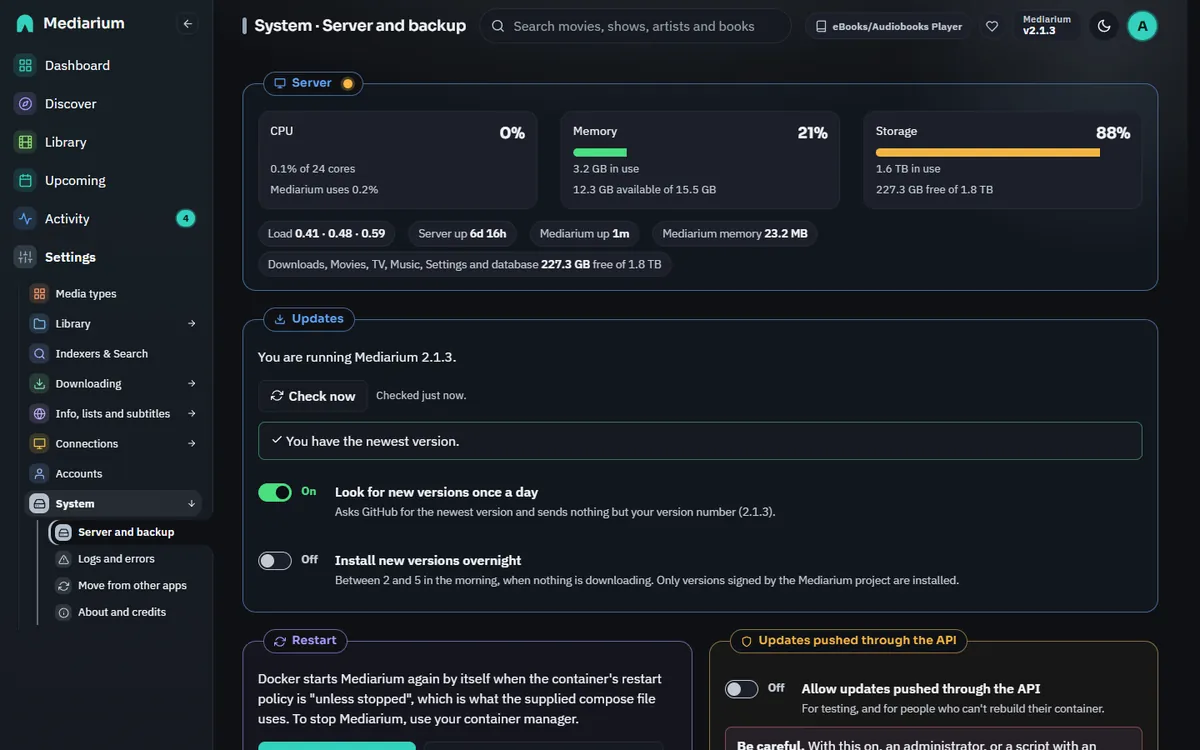
Settings > System > Server: the live Server card, then Restart and Clean up.
The clean-up looks only inside the working folder (<downloads>/incomplete). It never deletes anything else in the downloads folder, or anything in the movie or TV library, even when a library folder sits inside the downloads folder. Symbolic links are removed as links and never followed, and paths that would lead outside (../, a linked folder) are refused.
It finds these, with the space each one frees (a file that's also hardlinked into the library frees nothing and counts as 0):
| Reason | What it is |
|---|---|
imported-leftover |
the folder of a download that was imported and isn't seeding any more (after a restart, for example, since seeding doesn't survive one) |
seeding-finished |
a torrent that has reached its seeding goal |
orphaned |
a folder or file no download owns any more, or a failed download's folder, unchanged for a day |
empty-folder |
a folder with no files in it |
Anything a download is still using (queued, downloading, importing, paused, seeding, or waiting for a conflict decision) is never touched.
- Automatic: runs once a day (
cleanup.auto, on unless you switch it off). - Clean up now: runs it straight away.
- API:
GET /api/system/cleanupreturns{reclaimableBytes, items: [{path, sizeBytes, reason}], lastRunAt, auto, historyRetentionDays}(pathis relative to the downloads folder, for exampleincomplete/queue-12).POST /api/system/cleanupruns it and returns{removedBytes, removed: [...], prunedQueueItems, prunedActivity, lastRunAt, errors}. Both are for administrators only.
History and activity
Each clean-up also drops finished (completed, failed or stopped) downloads from the queue history, and activity entries, older than 90 days (cleanup.history_retention_days; 0 keeps them forever). Downloads still running, paused or waiting for a decision are never dropped. The Clean up card has the automatic switch and a box for the number of days (Keep finished downloads and activity for … days, press Save). Scripts can use historyRetentionDays in PUT /api/settings (cleanupAuto is the switch).
When a download fails
Open Settings > System > Logs and errors. Every failed download is listed there with the movie or show it was for, what most likely happened (a full disk, a broken archive, a login your provider refused, missing parts) and what to try, with a button to the settings page that fixes it. "Too many connections" from your Usenet provider is listed there too, with a count. See Logs and errors.
Removing a movie or show
Removing a title from the library leaves nothing behind in the downloads folder. Its downloads are cancelled (a running Usenet download stops, a torrent stops downloading or seeding), their folders are deleted (including leftovers from failed downloads), and they leave the queue. The activity list keeps a line saying so.
Also delete everything on disk (?deleteFiles=true, unticked in the app, which shows the number of files and their size first) deletes the title's files too:
- A movie in its own folder (
Movie (Year)/): the whole folder, with subtitles,.nfo, artwork and extras. - A show: the show's folder with every season, subtitle,
.nfoand artwork. - A file loose in the library folder, or in a folder shared with other titles: only the video and the files named after it (
Movie (Year).en.srt,Movie (Year).nfoand so on). Other titles' files are left alone. A folder counts as shared when another title in the library has a file in it, or when it holds a video named after something else.
The recycle bin
Files removed this way are not deleted straight away. They move into a hidden folder, .mediarium-trash, inside the same library folder (the movie, TV or music folder they came from). Moving them is instant because they stay on the same disk. Media servers and Mediarium's own scans skip hidden folders, so nothing in the bin shows up anywhere.
- Activity > Recycle bin lists what is there, with its size and when it will be deleted for good. Put back returns the files to where they were; it refuses, and changes nothing, if something new is already in that place. Putting files back does not add the title to the library again: use Import in the Library, or add the title again. Delete now and Empty the recycle bin delete for good, after a confirmation.
- Files stay 7 days by default. Change it under Settings > System > Clean up ("Keep removed titles' files in the recycle bin for"); 0 deletes removed files straight away, as before. The daily clean-up empties what is older. Stored as
library.trash_days; scripts usetrashDaysinPUT /api/settings. - If a move fails for any reason other than safety (for example the library folder spans two disks), the files are deleted as you asked and Activity says so.
- Scripts:
GET /api/trash,POST /api/trash/{kind}/{id}/restore,DELETE /api/trash/{kind}/{id}andDELETE /api/trash(empty everything), for administrators.kindismovies,tvormusic.
GET /api/movies/{id}/disk-usage, GET /api/series/{id}/disk-usage and GET /api/music/artists/{id}/disk-usage (administrators) answer {files, bytes, trashDays}: what that choice would delete from the library, so a script or the app can show it before asking.
The library folder itself is never deleted. A file that isn't inside the movie or TV folder, or is reached through a symbolic link leading out of it, is never deleted either. The removal is refused (409) and nothing is changed, so you can remove it by hand or remove the title without deleting files.