Docs / Using Mediarium
Discover and adding titles
Discover is for when you don't know what to add. It has rails for what's trending, popular and coming soon, and a row of titles like the ones you already have. Every poster has an Add button. Titles you already have say so and open their page. Browse all and Browse more open a list on its own page, in pages of whole rows with Previous, page numbers and Next.
At the top, All, Movies, TV shows, (with the Music module on) Music and (with ebooks or audiobooks on) Books choose what you see. All has a section for each kind that is switched on, in that order: Movies, TV shows, Music, Books. The Books tab is described in Ebooks and audiobooks. Each section has its own title and line, and only holds its own kind. Every tab has the same row of filters: Genre, From year, To year and Order (Most popular, Highest rated, Newest first, Oldest first; music has no Highest rated), and on Music also Type (Albums, EPs, Singles). Picking one turns the rails into one filtered list. Genre needs a single kind, so it waits on All. Clear filters puts them back. The Hide what I have switch leaves out titles already in your library, and the choice is remembered in this browser. The list button at the end of the row (Import a Trakt list, an icon on its own) takes the address of any public Trakt list and shows what's on it, with Add buttons. It uses the Trakt Client ID from Settings > Info, lists and subtitles > Movie and show info.
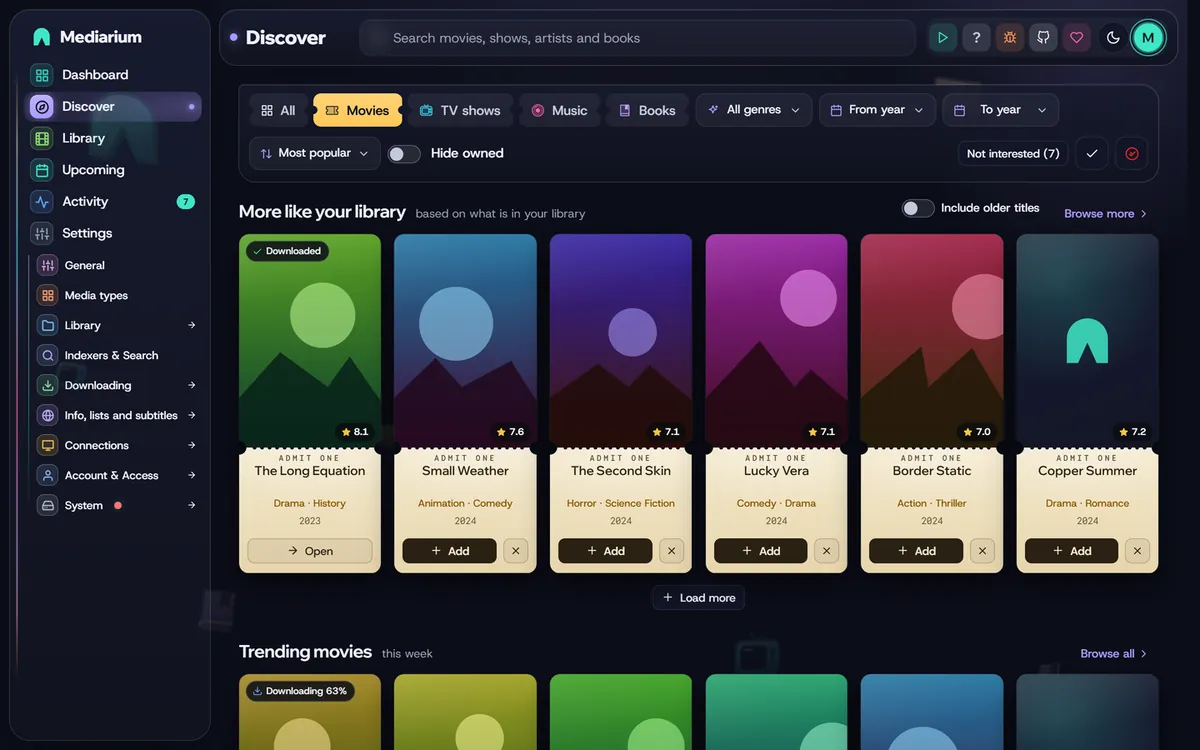
Discover. The rows for movies and shows like your library come first.
More like your library
This row asks the movie database what relates to your titles, merges the answers, and lists the best ones. It shows when your library has at least one movie or show and a movie database key is set (Settings > Info, lists and subtitles > Movie and show info).
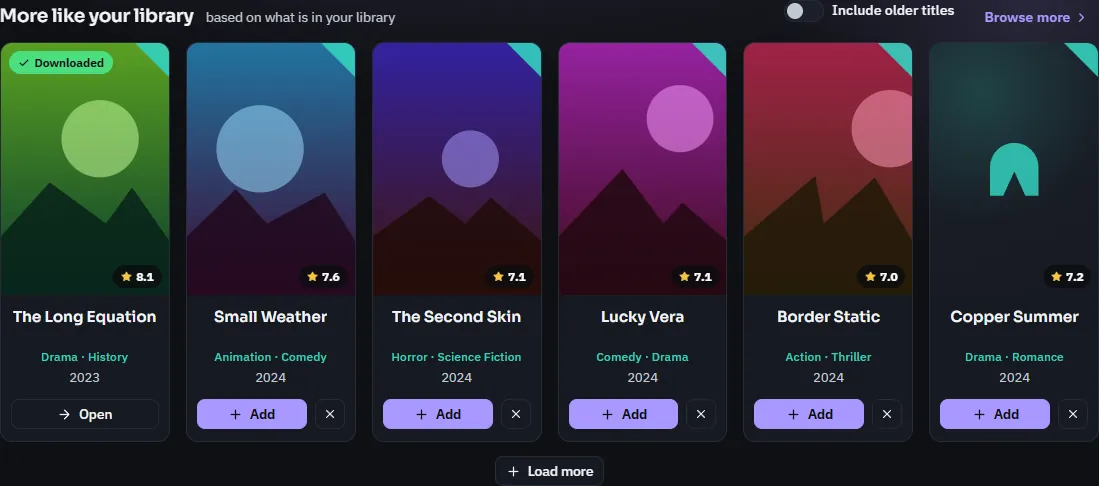
The movies row. Titles you already have are left out.
- Based on your library. Each visit it picks up to 10 of your 40 most recently added movies (or shows), a different mix from day to day, and asks for the titles related to each.
- Recent and popular come first. A title scores higher the more recent and popular it is, and the more of your titles point to it. Titles with a poster come before titles without one.
- Recent means the last 15 years. Only titles from this year and the 15 years before it are listed, so a library of classics doesn't fill the row with films from the 1970s. Switch on Include older titles to see the rest. They come after newer ones of the same standing. The switch is remembered in this browser.
- Nothing you already have is listed. Once you add a title, its card turns into In library and it drops off the list the next time it loads.
- Movies and shows apart. With All selected, the Movies section has a row of movies and the TV shows section a row of shows. With Movies or TV shows selected there's one row. Browse more opens the full list for that kind, with its own Movies and TV shows buttons and the same Include older titles switch.
For scripts: GET /api/discover/list?kind=movie|tv&list=similar&page=1&older=true returns the same page shape as the other lists (results, totalPages, totalResults), at most 200 titles. older=true lifts the 15-year limit. GET /api/discover/for-you still returns the first 20 movies of the same ranking.
Your Plex watchlist
Anyone can connect their own Plex account under Plex watchlist on Settings > Account & Access > Linked services (Connect my Plex watchlist, then approve it in the Plex window that opens). From then on:
- What you add to your Plex watchlist, in any Plex app, comes to Mediarium by itself. Mediarium checks every 20 minutes. Movies and shows are added and searched for straight away, the same as pressing Add. For an account that has to ask (Add titles themselves off), they become requests for an administrator instead, under Activity > Requests.
- What was already on the list when you connected isn't added in one go. It shows at the top of Discover as Your Plex watchlist: movies and ...: shows, with the usual Add buttons.
- A title already in the library is left alone, and each title is handled once: taking it off the watchlist and putting it back doesn't add it again.
- Check now looks straight away; switching off Add what I add to my watchlist stops it without disconnecting, and Disconnect forgets the Plex account.
Mediarium keeps your Plex sign-in encrypted and only uses it to read your watchlist. Watchlists live with your Plex account, not on a Plex server, so this works whether or not you connected a Plex server, and with Jellyfin or Emby too.
The page of a title you don't have yet
Click a poster or title in Discover, a result in the search box at the top, or a result on the Search page, and a title you don't have opens its own page: a big poster, the title and year, the age rating, runtime, rating, genres, the tagline and the full summary, the trailers (Trailer 1, Trailer 2, Teaser and so on), links to the film's website, IMDb and TMDB, the director (or the creators of a show), and the cast with their photos. A show also lists its seasons with the number of episodes in each. All of it is fetched from TMDB when you open the page and kept for ten minutes. It has none of the parts that only make sense for something in your library (what happened, files, subtitles, better copies), and one big Add to library button that opens the Add dialog below. Titles you already have open their normal page.
Trailers open in a pop-up. A click on Trailer 1, Trailer 2 and so on plays it in a box over the page (from youtube-nocookie.com, and only once you pressed it); Open on YouTube in the box, or a Ctrl-click on the link, opens it on YouTube itself.
Trailer behind the page. A title page plays its first trailer by itself, muted (or with sound, see below), in place of the still picture (like a streaming service's title page), a moment after it has opened, across the whole width of the page behind the text. The picture fades back in as the trailer nears its end, and a Sound on button sits beside the trailer links. The video is loaded from YouTube (youtube-nocookie.com), so YouTube sees that you opened the page. An administrator can switch it off for everyone under Settings > Info, lists and subtitles > Movie and show info > Trailers (trailerBackground in PUT /api/settings, on until set to false). The switch below it, Start the trailer with its sound on (trailerSound, off until set to true), asks the browser to unmute it once it plays; browsers only allow that after you have clicked something on the page, and when it refuses the trailer carries on muted. Each browser can turn the trailer and its sound on or off for itself with the two small icon buttons next to the trailer links (a film strip and a speaker), which that browser remembers and which win over the server's choices. It stays off for anyone whose system asks for reduced motion or for data saving. If no trailer will play, a short note under the trailer links says why. The browser keeps a small log of what the player reported in its own storage (mediarium-trailer-log), for finding out why one doesn't start; it is never sent anywhere.
Search results (the box at the top, Discover and the Search page) list the newest year first. Results whose title starts with what you typed come before the rest, so a 2026 remake is above the 2022 film with the same name; releases from the same year keep the order the movie database gave them. Books are ordered the same way by year, and artists with the same name and score are listed with the newest first.
For scripts: GET /api/tmdb/movies/{tmdbId} and GET /api/tmdb/tv/{tmdbId} return all of this, and any account can read them. A movie carries directors, a show creators and seasonList (number, name, episodes, airDate), and both cast (up to 12, in billing order) and trailers.
The Add dialog
Add on a title opens the Add dialog: the quality profile, what to monitor, where to download from, and whether to start searching now.
- Monitoring. A movie is Monitored (searched for and downloaded) unless you change it to Not monitored. For a show, Which episodes to monitor starts on All episodes. The other choices are Only episodes that haven't aired yet and None. Untick Start searching for it now (Start searching for missing episodes now for a show) to skip the first search. The box is greyed out while no indexer is set up.
- Keep looking for better versions after it is downloaded. Tick it and Mediarium swaps the title for a better release when your quality profile allows it. Left off, the title stays as first downloaded. The choice is remembered in this browser, and you can change it for a single title later, on its page, under Better versions.
For scripts: POST /api/movies and POST /api/series take noUpgrade. Left out, it's true (better versions off). Send false to look for better versions. A title added by grabbing a release from a search also starts with better versions off.
Adding many titles, and Not interested
- Select (the tick button at the end of the filter row, next to the Trakt list button) turns Discover into a picking mode: each poster gets Pick, and a bar at the top counts what you picked. Add N titles adds them all with the usual defaults (monitored, the default quality profile, and a search straight away). Done leaves picking mode.
- The x next to Add on a poster means Not interested: that movie or show is never shown on Discover again. Not interested (N) at the top lists them, each with Show again. In picking mode, Not interested does the same for everything picked. The list is shared by everyone using this Mediarium. Scripts:
GET /api/exclusions,POST /api/exclusionswith{"kind": "movie", "tmdbId": 603, "title": "Night Harbour"}, andDELETE /api/exclusions/{kind}/{tmdbId}.