Docs / Using Mediarium
Media types (modules)
Mediarium looks after several kinds of media, and each kind is a module. Settings > Media types (administrators only) is where you switch them on and off. A module that's off disappears from the menu and does nothing in the background.
| Module | Default | State |
|---|---|---|
| Movies | on | available |
| TV | on | available |
| Music | off | available, see Music |
| Ebooks | off | see Ebooks and audiobooks |
| Audiobooks | off | see Ebooks and audiobooks |
The Media types page
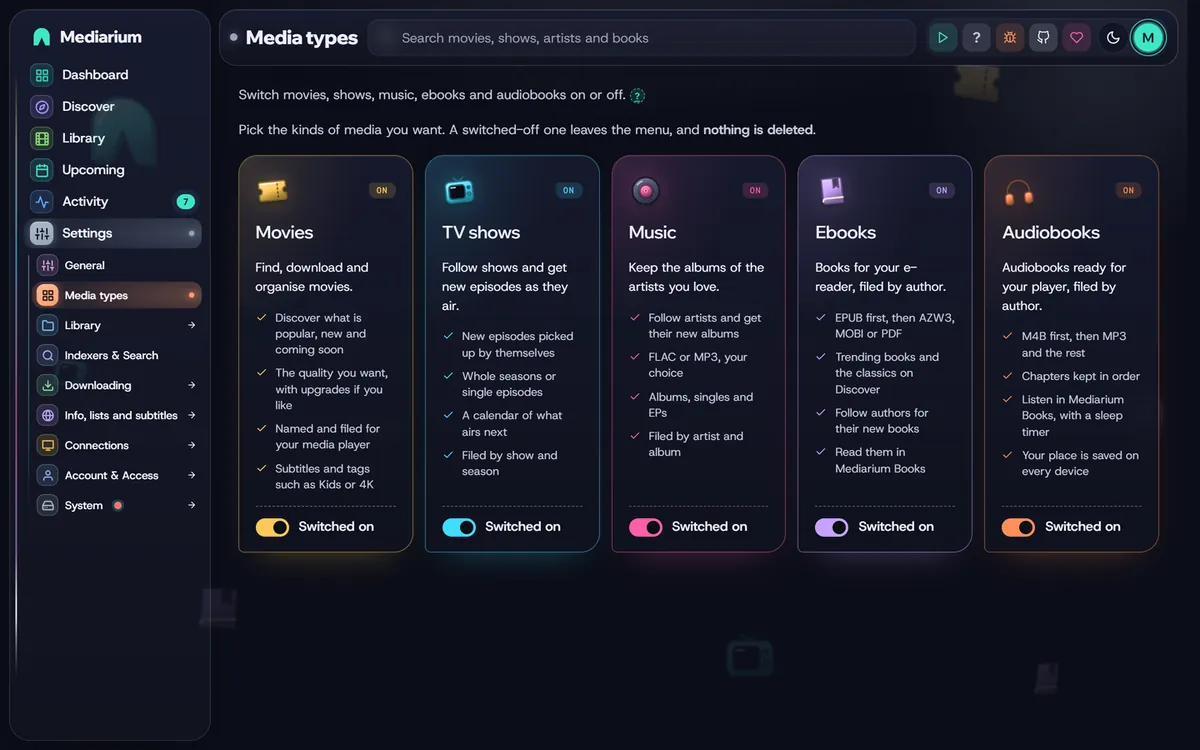
Settings > Media types. All five kinds are switched on. The Settings entry in the sidebar is open.
Settings > Media types is the first page in Settings, and the one administrators land on. Each kind of media has a card with a switch, side by side and all the same height. A card says in a line what that kind does, with a short list of what you get. There's no Save button, and a small message confirms the change. If the server refuses it, the switch goes back and the reason is shown.
- Movies, TV shows and Music can be switched on and off.
- Ebooks and Audiobooks switch on and off like the others (see Ebooks and audiobooks).
- Each card says On or Off, and its switch reads Switched on or Switched off.
- The last module that's on can't be switched off. Its switch is locked, with a note that Mediarium needs at least one kind of media.
- All five cards look alike: an icon, the name, a one-line description and the switch.
- The music folder and the Import my existing collection button are on the Folders page, with the movie, TV and downloads folders (see Music). The music folder shows there even while Music is off, greyed out with a note to switch Music on first. The Ebooks and Audiobooks folders work the same way: greyed out while their format is off, starting from
EBOOKS_DIRandAUDIOBOOKS_DIR(or the one you set in the setup wizard).
Every signed-in account, basic users included, sees only the modules that are on. The Movies, TV and Music tabs in the Library and Discover, and the music pages, appear and disappear with the switches.
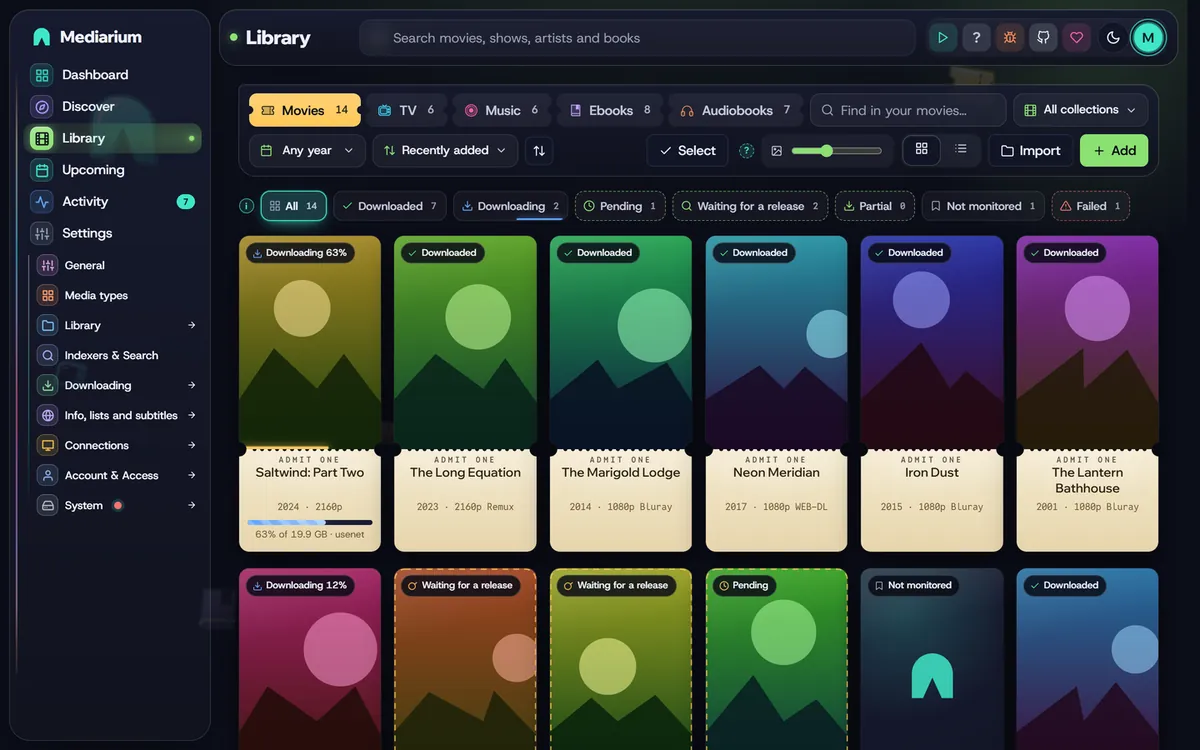
The Library with all three modules on: one tab each for Movies, TV and Music. Switch a module off and its tab disappears.
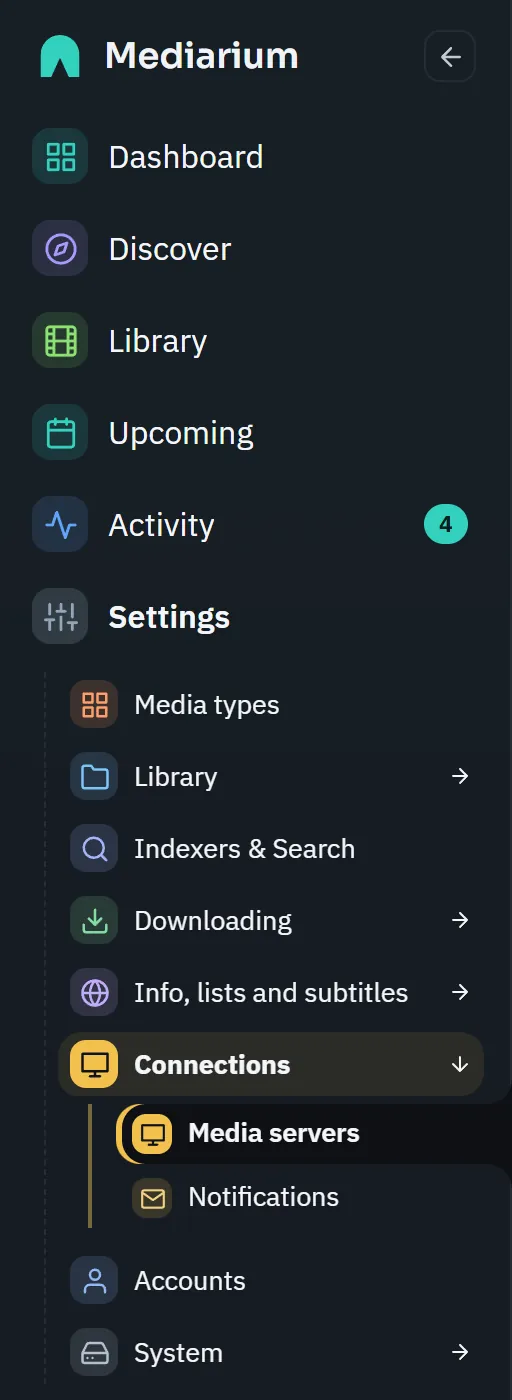
The Settings menu in the sidebar. Pages on one topic share an entry (here Connections). Opening it shows its pages underneath, and the other entries stay closed.
In the setup wizard
The second step of the first-run wizard is What do you want to manage?, with the same five cards. Movies and TV shows start on; Music, Ebooks and Audiobooks start off. At least one has to stay on. Your choice is saved to the same switches (PUT /api/modules), and the later steps only ask about what you picked. The Library paths step has a box for each kind you chose plus Downloads, and Quality & naming talks only about movies and TV shows (with music alone there's nothing to pick there). Folders for ebooks and audiobooks you didn't pick can be filled in ahead of time in a section for later.
Folders for each module
Each kind of media has its own folder, set with a container variable (or the box in the wizard and Settings). The value in Settings wins over the variable.
| Module | Variable | Default | Setting |
|---|---|---|---|
| Movies | MOVIES_DIR |
/movies |
library.movies_path |
| TV | TV_DIR |
/tv |
library.tv_path |
| Music | MUSIC_DIR |
/music |
music.path |
| Ebooks | EBOOKS_DIR |
/ebooks |
ebooks.path |
| Audiobooks | AUDIOBOOKS_DIR |
/audiobooks |
audiobooks.path |
Downloads use DOWNLOADS_DIR (/downloads, setting library.downloads_path). GET /api/settings returns the folder in use for each (moviesPath, tvPath, downloadsPath, musicPath, ebooksPath, audiobooksPath) and a read-only containerFolders object with the values from the environment, so a screen can tell when a saved folder differs from the mapped one.
Adding music, ebooks or audiobooks later
The easy way: if your movies, TV and downloads already share one mapped folder (for example /data/Movies, /data/tv and /data/downloads), there's nothing to change in your compose file. Under Settings > Library > Folders, a folder that isn't found offers Use /data/Ebooks (or Music, Audiobooks), which creates it next to the others and fills in the box. Then press Save. A missing folder inside a mapped one also gets a Create this folder button, and the setup wizard offers create it now. Mediarium only creates a folder one level inside a folder that is mapped to your device and writable, so nothing ends up inside the container where an update would lose it.
Otherwise:
- Create the folder on your server (on a NAS, before the next step, or Docker won't start).
- Give it to the container: either a
*_DIRline inenvironmentpointing inside your/datafolder (for exampleMUSIC_DIR=/data/music), or avolumesline such as- /path/to/music:/music. Then recreate the container (Install guide). - Switch the type on under Settings > Media types (music today), and check the folder under Settings > Library > Folders, which shows whether it's Mapped to your device.
On the dashboard
The top row of the dashboard has a card for every kind of media (Movies, TV shows, Music, Ebooks, Audiobooks) and a compact Server card as the last one. A card shows how many you have and opens that Library tab. A kind that's switched off keeps its card, dimmed with an "Off" label and the count it had. The Server card shows the processor (with Mediarium's own share), memory and storage in use, with a small dot that turns amber and then red as any of them fills up. What's downloading and what's wanted are in the greeting card above it. The wanted number is the length of the list on Upcoming > Wanted: monitored titles with no file, and episodes that have already aired. On wide screens all six cards sit in one row, on medium screens in two rows of three, and on phones two by two. Basic users don't see the Server card.
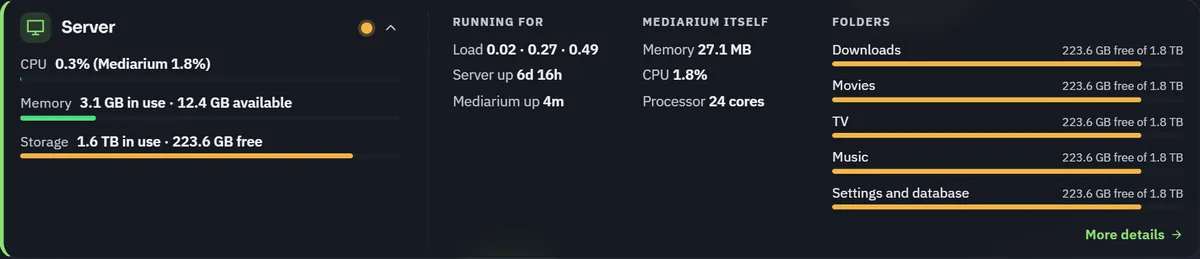
The Server card opened in place: load and uptimes, what Mediarium itself uses, and one bar per folder. Press it again to close it.
The full picture (bars for CPU, memory and storage side by side, load, uptimes and the disk of each folder) is on the Server card of the Server settings page (Settings > System).
The numbers come from GET /api/system/stats (administrators only).
cpu.percentis the whole machine, all cores together (100 means every core busy). In a container limited to fewer cores than the machine has (Docker--cpus, a NAS app limit), it's that container's own use of its allowance instead, andcpu.coresis the allowance.app.cpuPercentis Mediarium's own use as a share of one core (100 is one core fully busy, 250 is two and a half), so it can pass 100 on a multi-core machine.- On Docker Desktop for Windows or macOS, the container only sees the small Linux virtual machine Docker runs in, not the computer around it. An idle Mediarium then shows about 0% for the machine, while
app.cpuPercentshows what Mediarium itself uses. - Readings are taken over at least a second, so opening the page twice in a row shows the same figure.
storage({usedBytes, freeBytes, totalBytes}) adds up the disks that hold the downloads, movies, TV, music (when the music module is on) and settings folders. Each disk is counted once, however many of the folders are on it. Two folders count as one disk when the system gives them the same device or file system id, or when they report exactly the same total, free and used space. That second check catches a NAS volume (Synology Btrfs shares, for example) whose shared folders are separate mounts that all sit on one volume. On Windows a disk is a drive letter.disksstill lists every folder.
What switching a module off does
- Its pages are hidden, for basic users too.
- Automation skips it: no scheduled searches, no RSS sync and no automatic retries for that kind of media.
- Adding a title of that kind is refused with
409and "Movies are switched off. Switch them on in Settings > Media types." (for TV: "TV is switched off. Switch it on in Settings > Media types."). That includes grabbing a release from the search page that would add one. - Nothing is deleted. Your movies, shows, artists, files and settings stay as they are. Downloads already running finish. Switch the module on again and everything carries on.
At least one kind of media must stay on. A change that would switch every available module off is refused.
For scripts
GET /api/modules (any signed-in account) returns
{
  "movies":     {"enabled": true,  "available": true},
  "tv":         {"enabled": true,  "available": true},
  "music":      {"enabled": false, "available": true},
  "audiobooks": {"enabled": false, "available": true},
  "ebooks":     {"enabled": false, "available": true}
}
PUT /api/modules (administrators) takes any of {"movies": bool, "tv": bool, "music": bool, "audiobooks": bool, "ebooks": bool} and returns the same shape. Fields left out keep their module as it is. A change that leaves nothing on with 400 {"error": "At least one media type has to stay switched on."}. A refused request changes nothing.
The switches are stored as the settings modules.movies, modules.tv, modules.music, modules.audiobooks and modules.ebooks (see Settings keys). The older music.enabled setting still works: it's used while modules.music has never been set, and is kept in step when the switchboard changes music. PUT /api/settings with musicEnabled goes through the same rules.